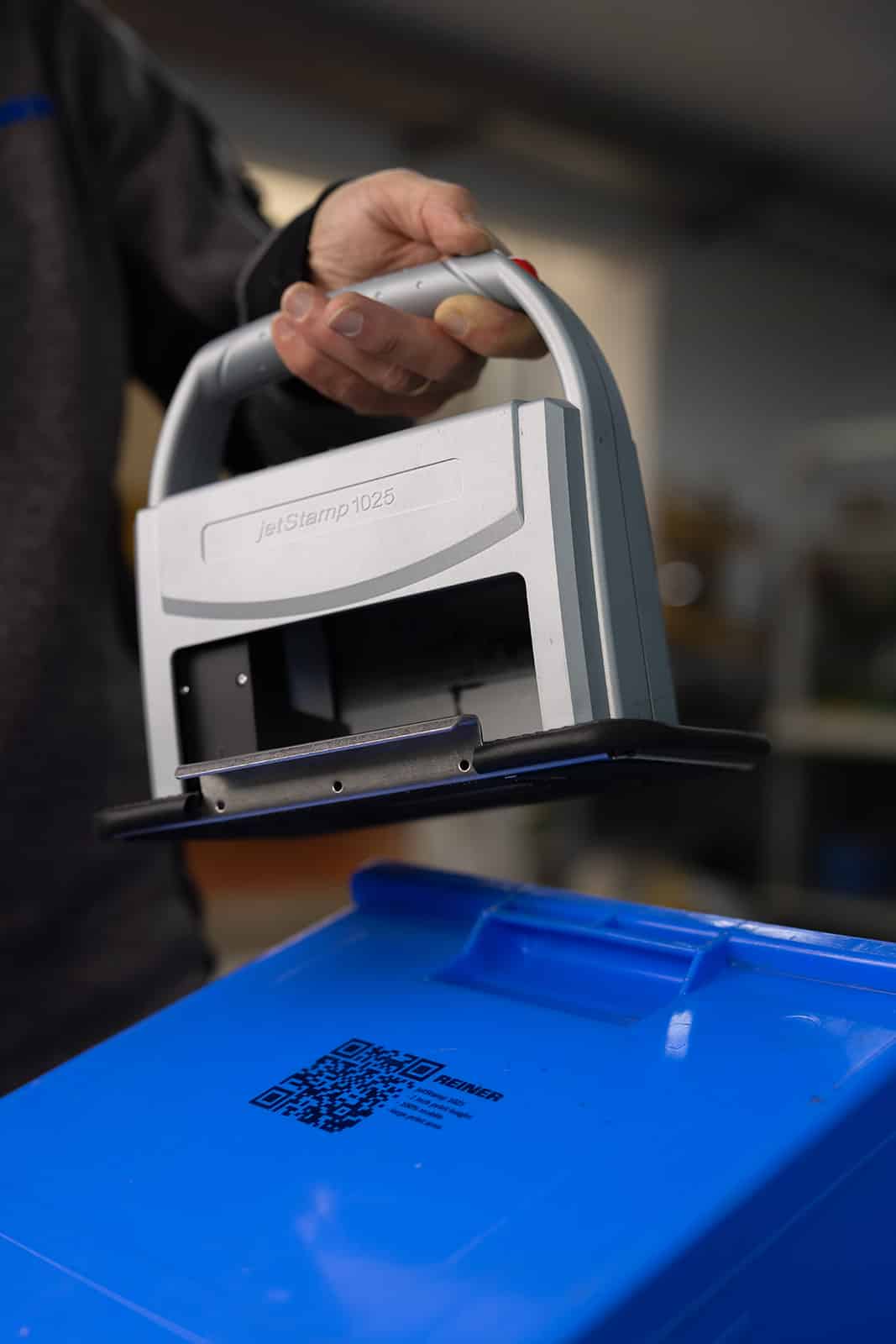
jetStamp® 1025
Mobile direct printing on cardboard, wood, metal & more - without a label
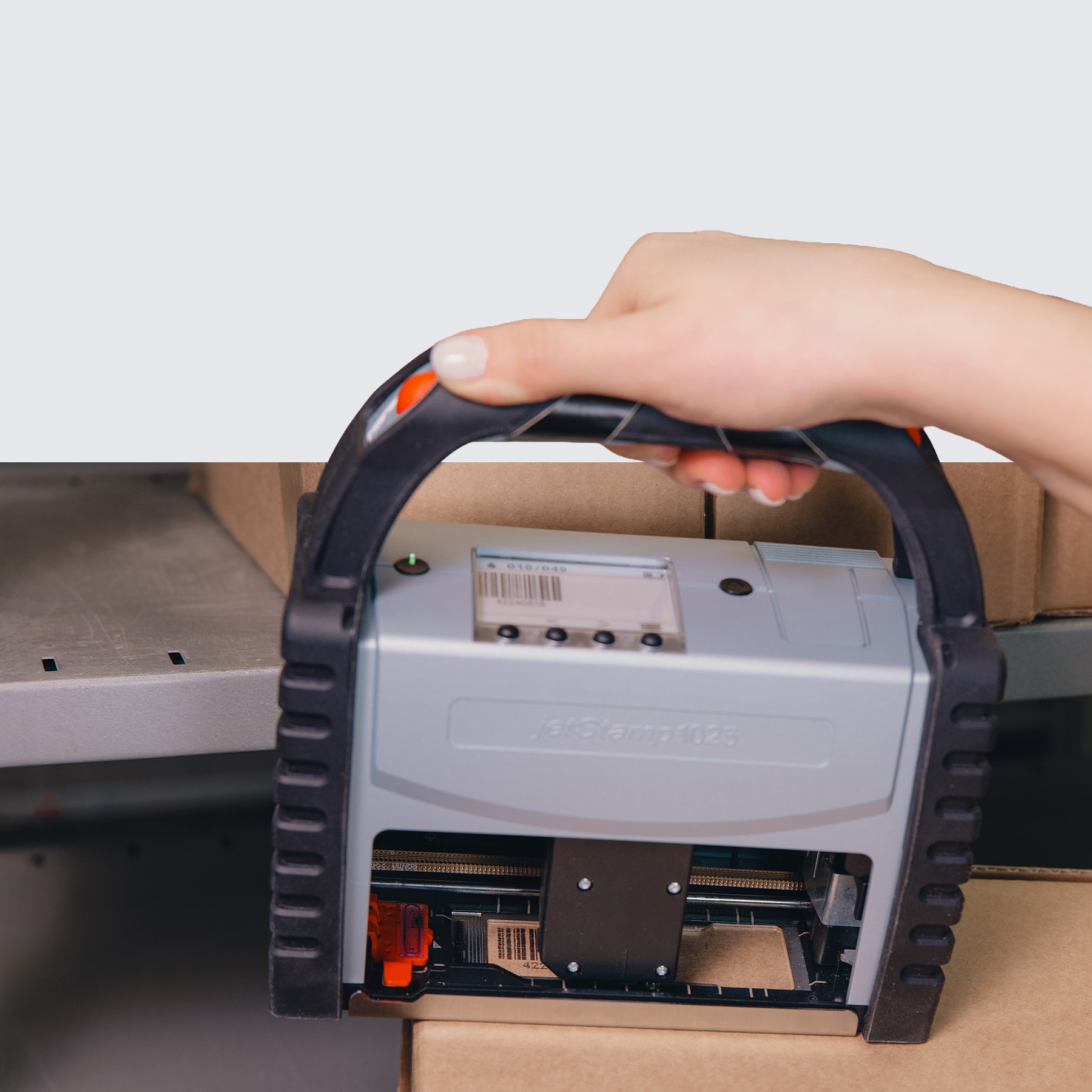
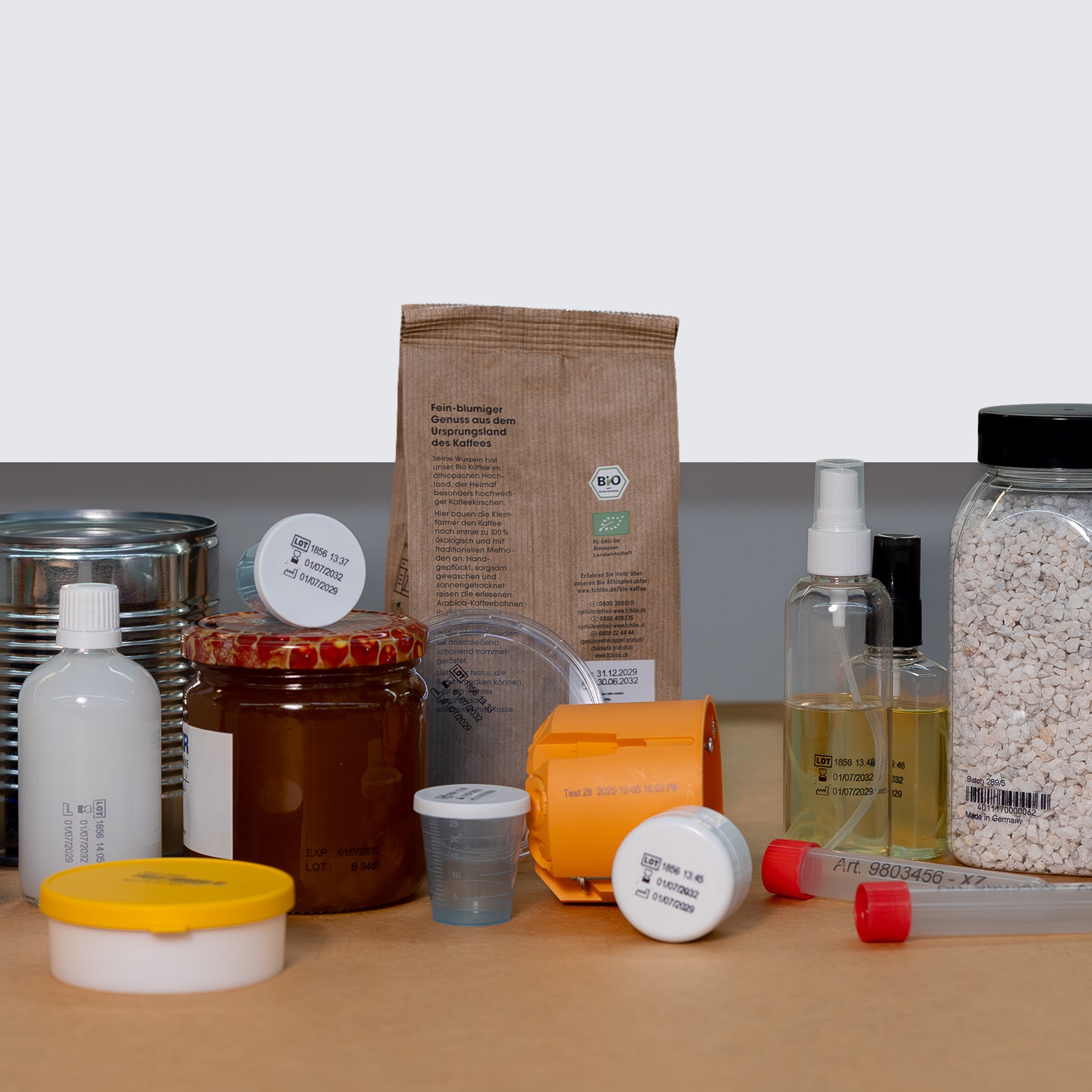
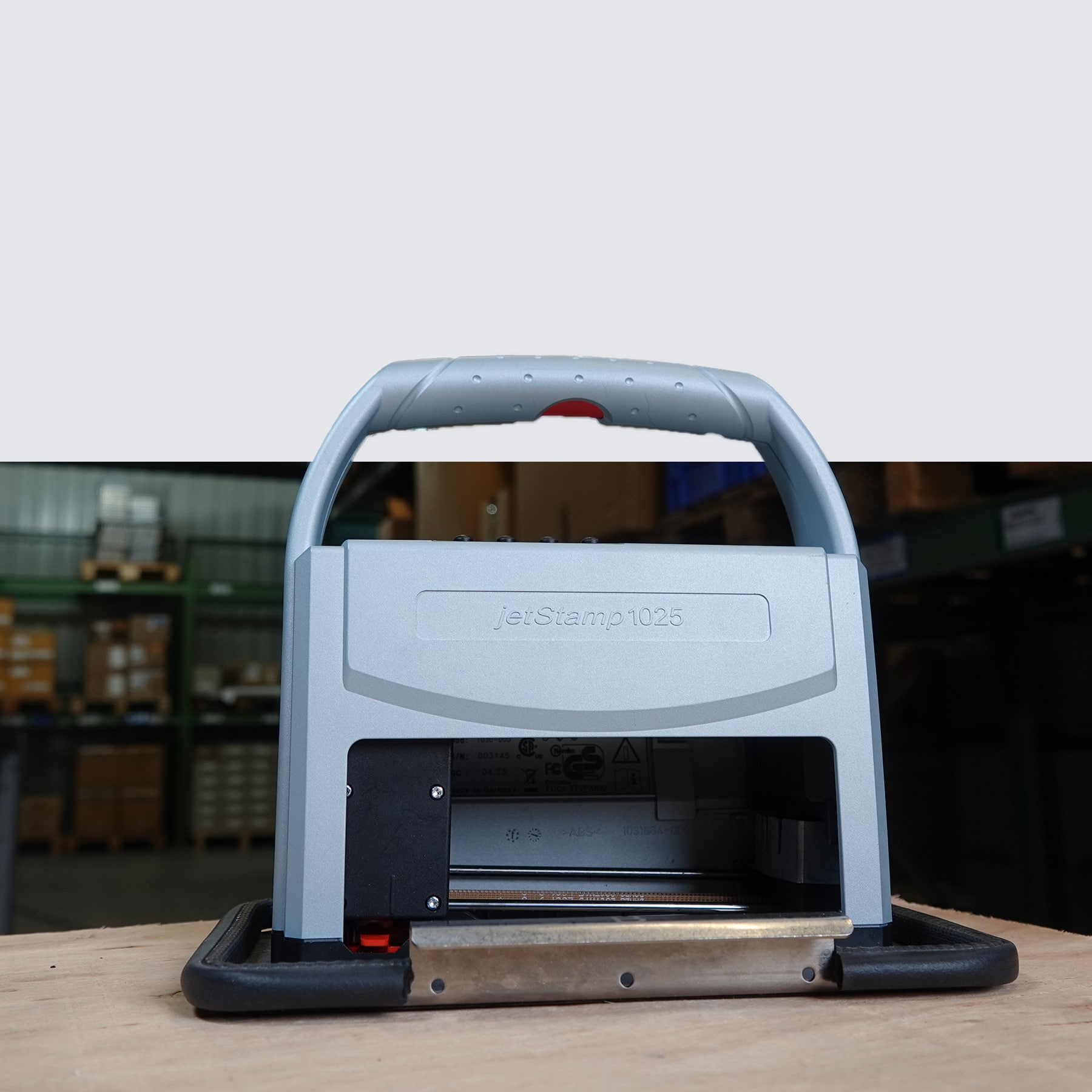
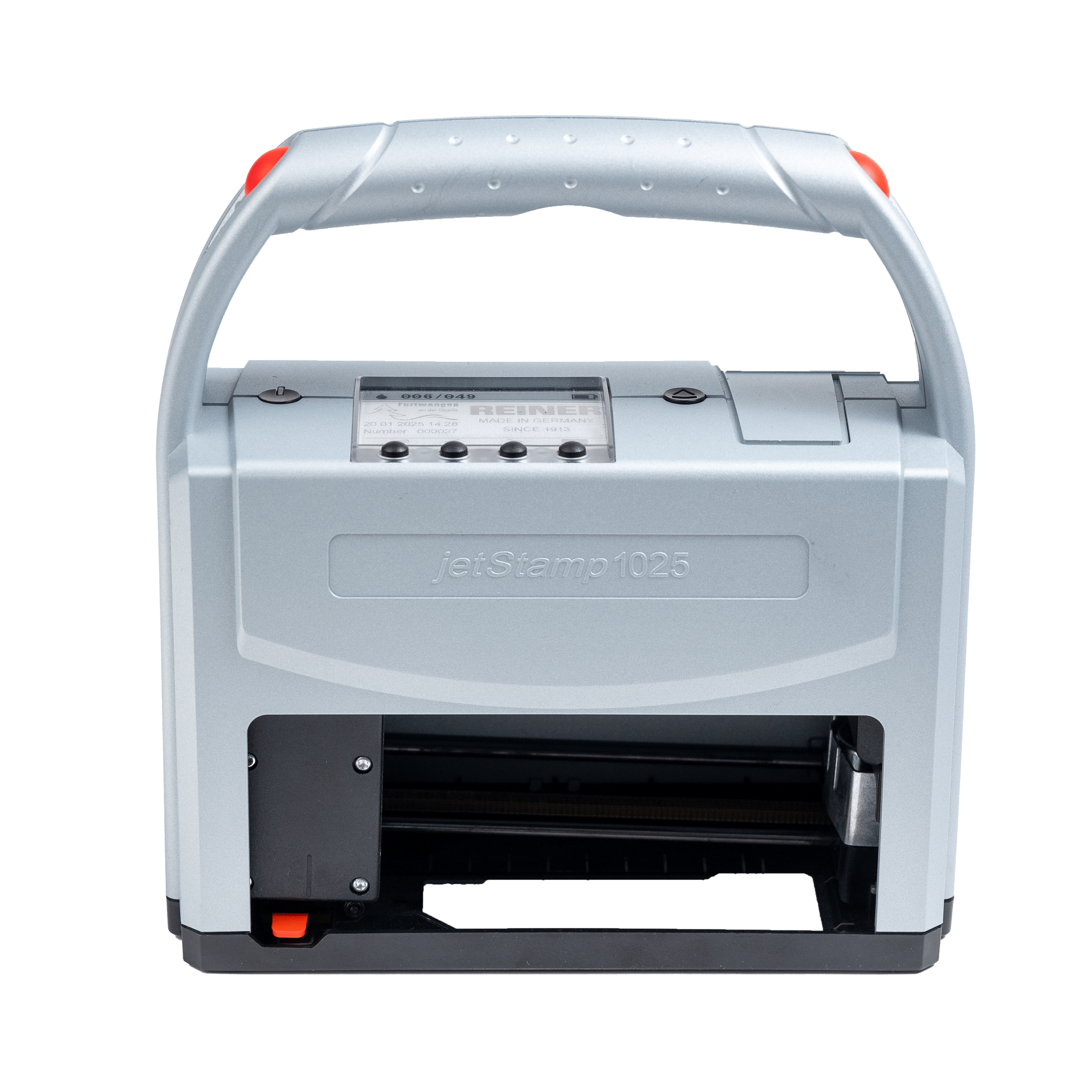
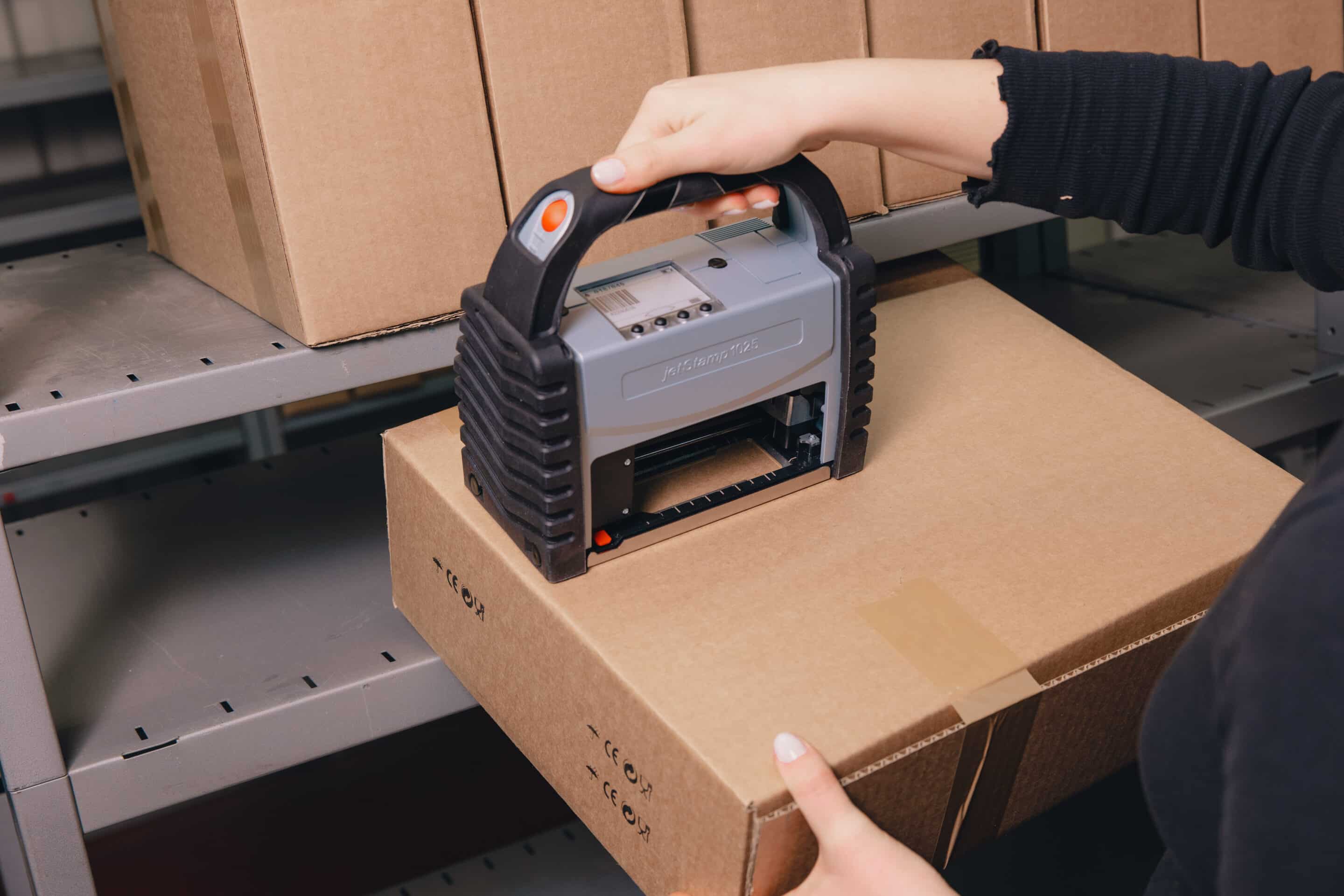
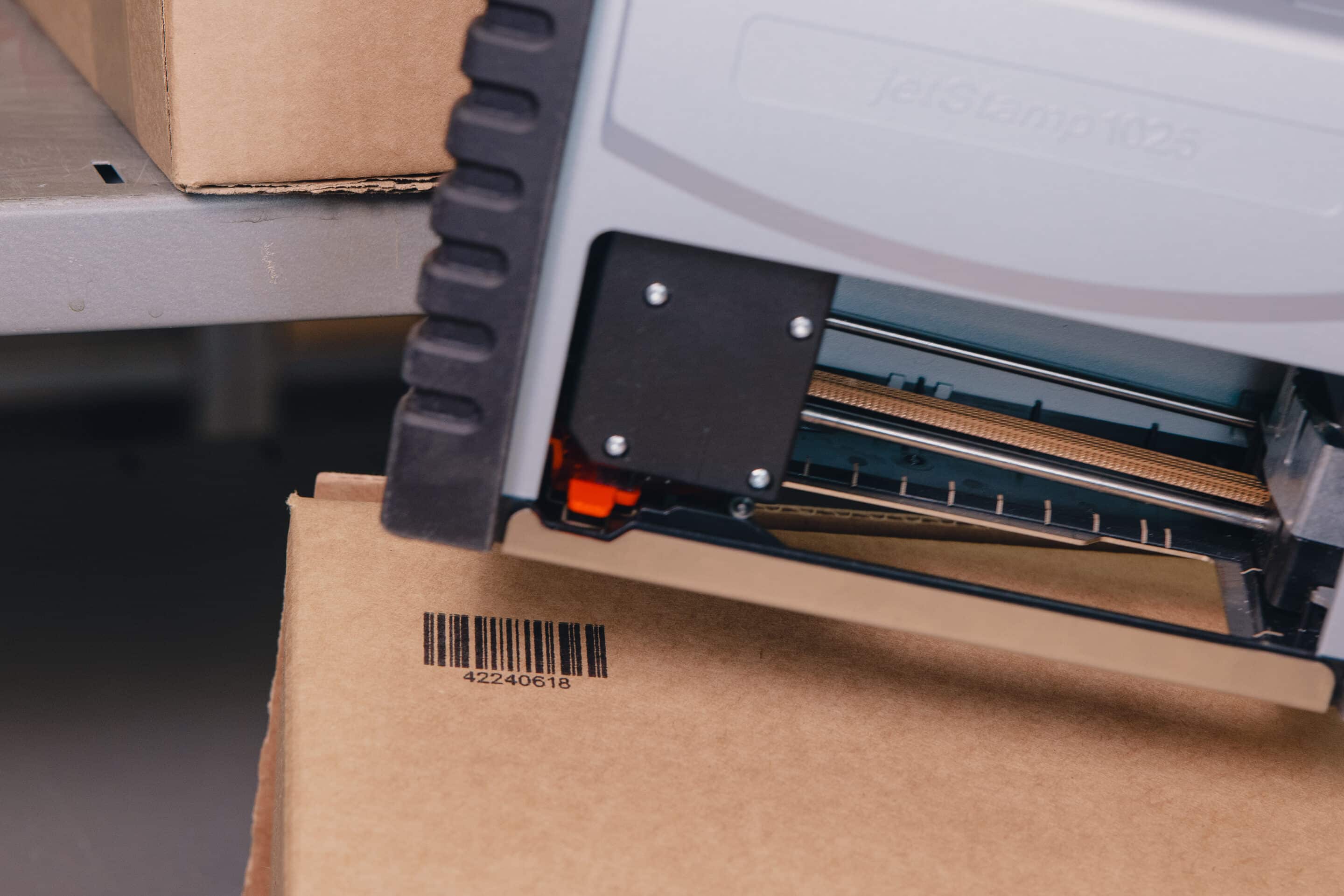
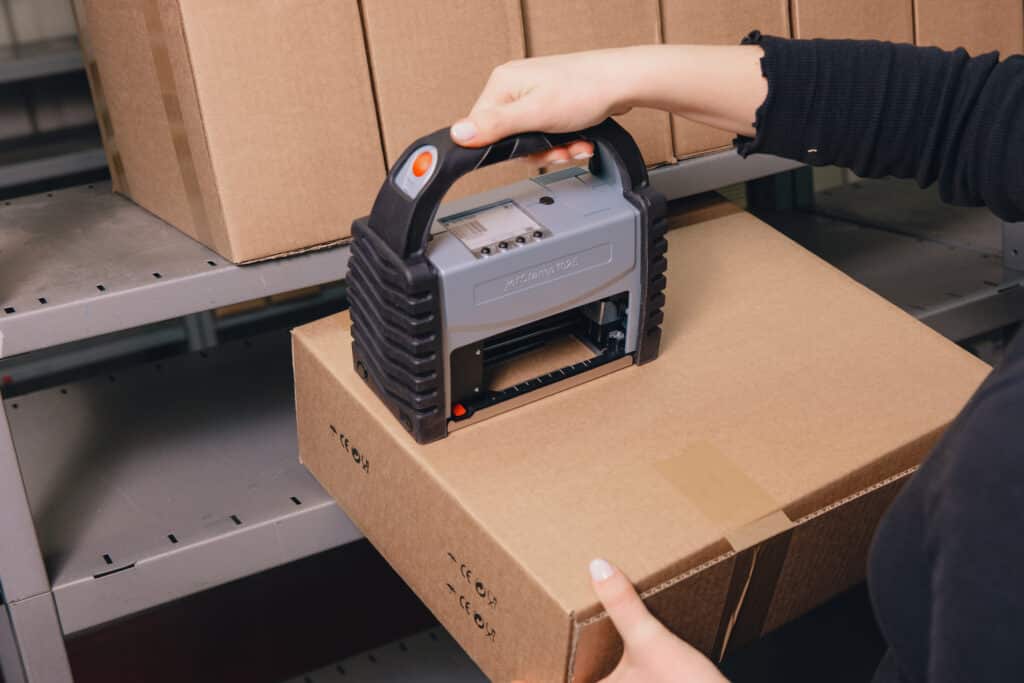
The jetStamp® 1025 is a mobile coding device for industrial direct printing without labels. Texts, barcodes, QR codes, logos, serial numbers, date, time and batch markings are printed directly onto products, packaging or pallets - without fixed installation and without additional label processes.
Whether cardboard, wood, metal, glass, plastic or other materials: the jetStamp 1025 is suitable for flexible marking and coding in logistics, production, food labeling, metal processing and special applications. The imprint is made at the touch of a button - fast, clean and reproducible directly on the product.
Technical highlights
Use
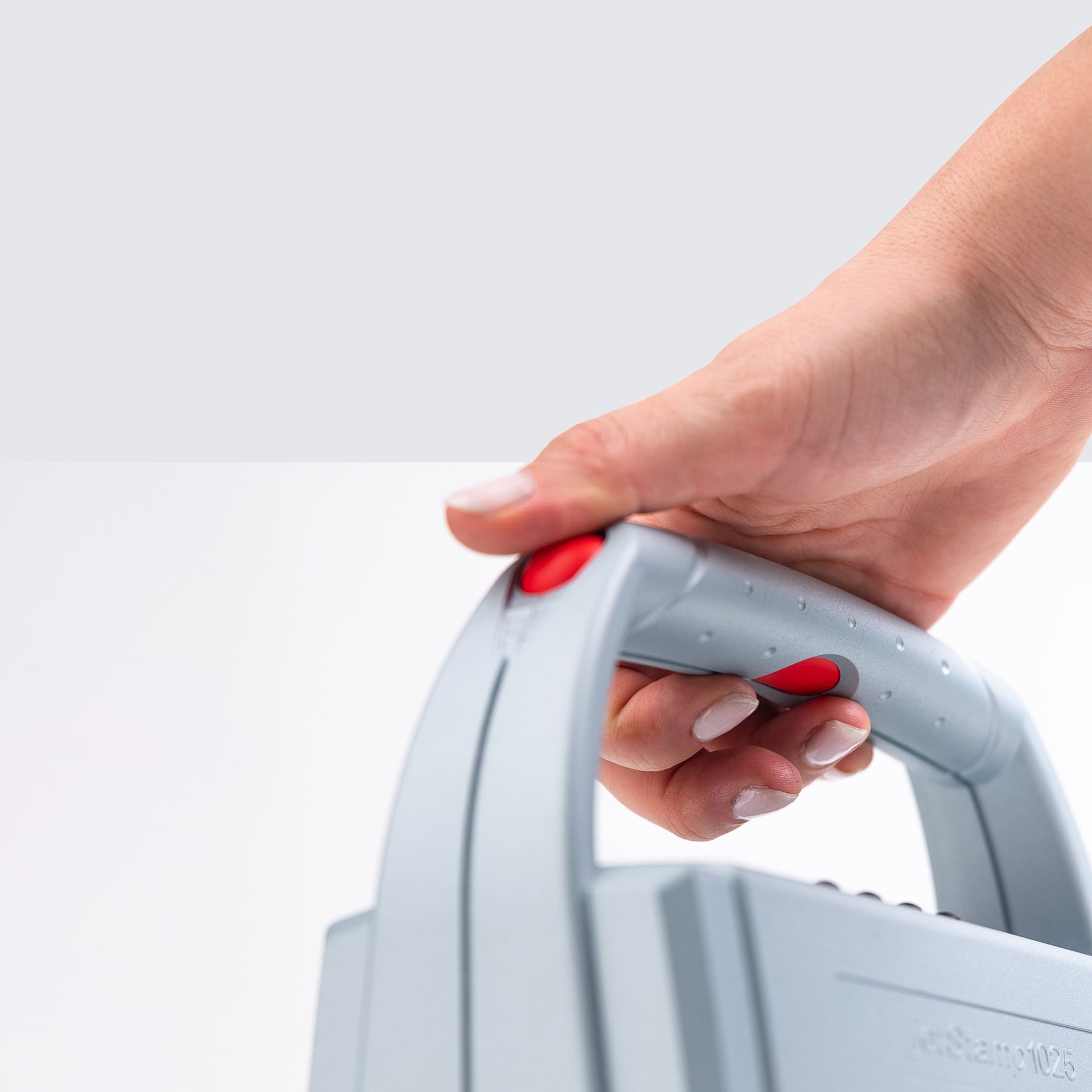
100 % mobile
Impression size
Up to 85 × 26 mm, expandable to 2 inches
Printed content
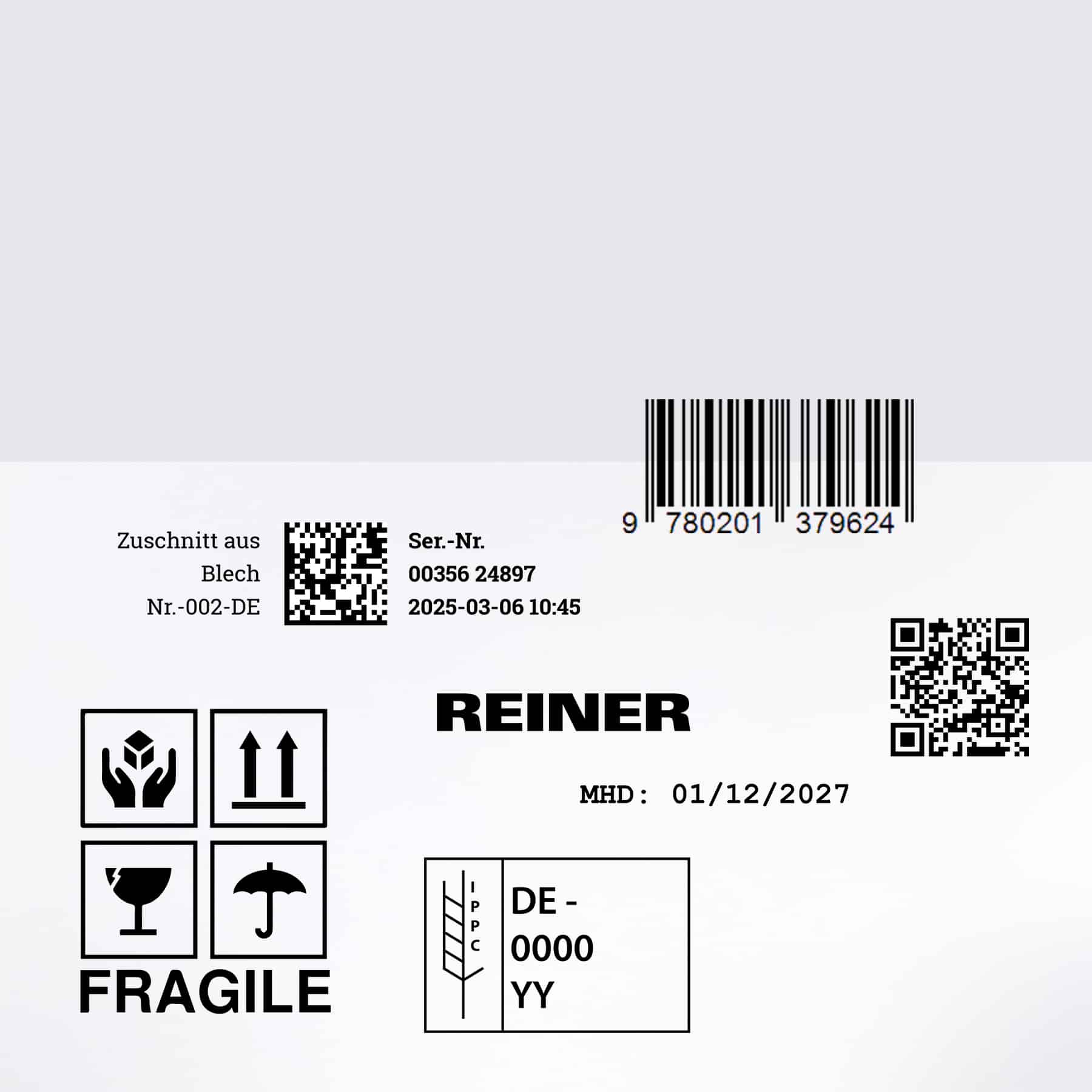
Texts, barcodes, QR codes, logos, numbers, date, time
print images
Over 200 storable
Operation
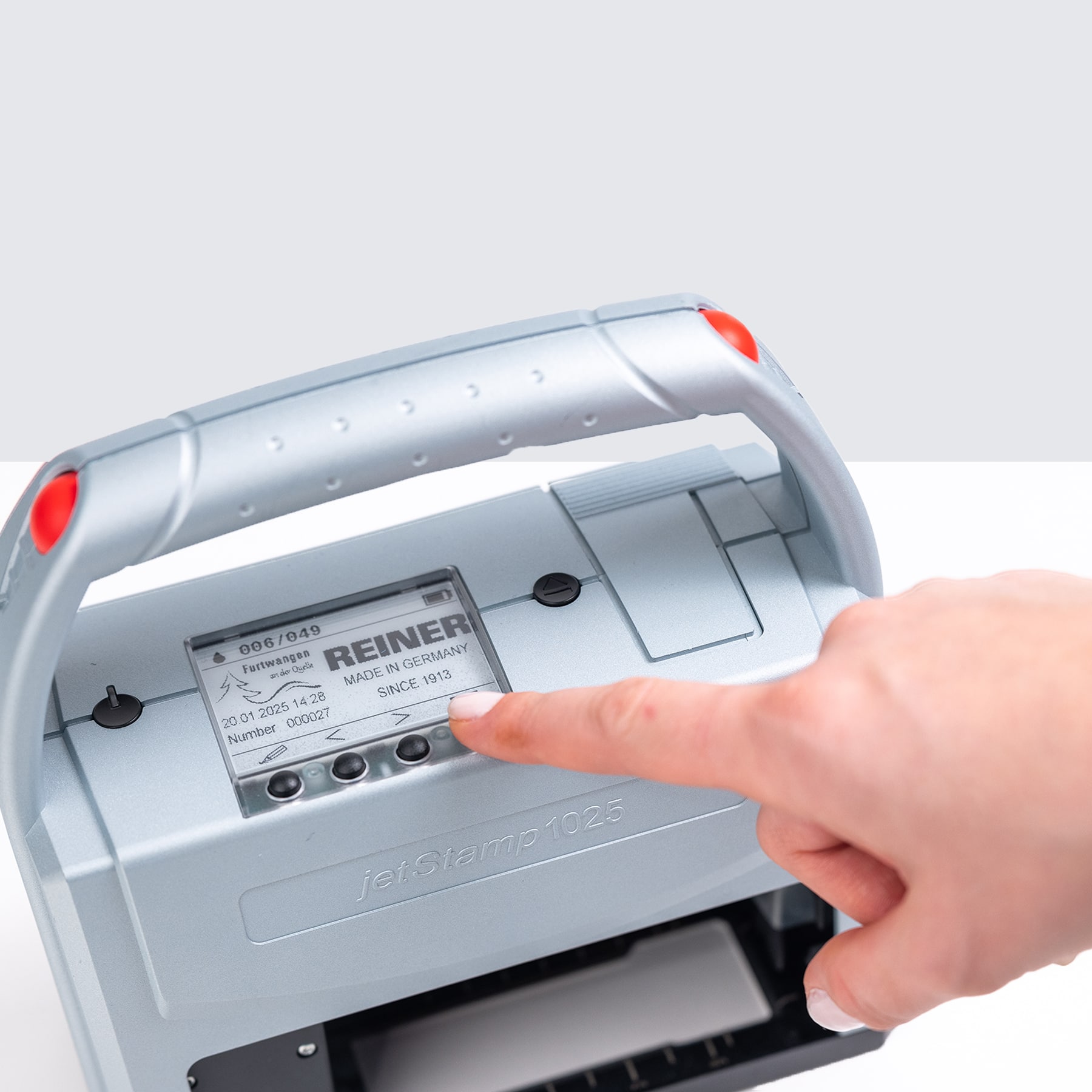
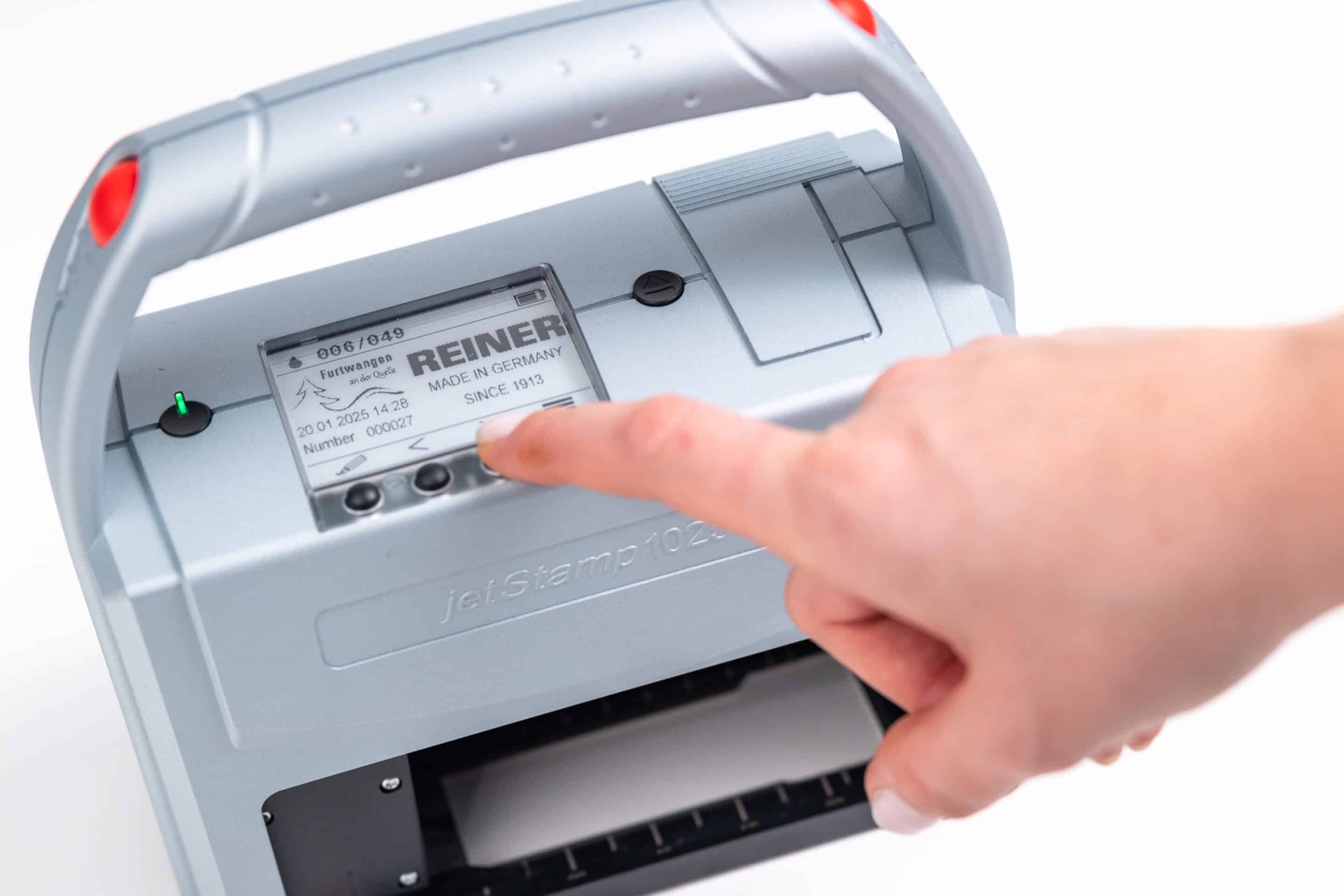
Display-guided & ergonomic
Connection
WLAN, Bluetooth & USB
special feature
Large-area direct printing at the touch of a button without moving the device
Test marks & standards

UKCA labeling
FCC conformity
GS1 competence
EPAL-compliant
GS-tested safety
CE certification




100 % mobile
Mark directly on site - without a fixed workstation.
Large impression surface
Up to 85 × 26 mm, expandable to 85 × 52 mm.
Direct printing at the touch of a button
Precise marking without moving the device.
Over 200 print images
Save print images directly on the device.
For many materials
Cardboard, wood, plastic, metal and more.
Your advantages in everyday production
Key Features
It's that simple
Step by step
From digital print image to clean imprint in just a few simple steps: the application is intuitive, quick to set up and ready for immediate use - ideal for flexible marking on a wide variety of surfaces.
The jetStamp® 1025 offers a range of unique features that we will be happy to advise you on personally. Find out more about the comprehensive Reiner service package - you are never alone with us.
1
Create impression with PCSet graphic
2
Position the device at the desired location
3
Trigger imprint at the touch of a button
Application examples
Use cases from practice
The application examples show how versatile labeling can be implemented in everyday working life. Different content can be flexibly applied to different materials - clearly legible, neatly positioned and suitable for the respective application.
The jetStamp® 1025 offers a range of unique features that we will be happy to advise you on personally. Find out more about the comprehensive Reiner service package - you are never alone with us.
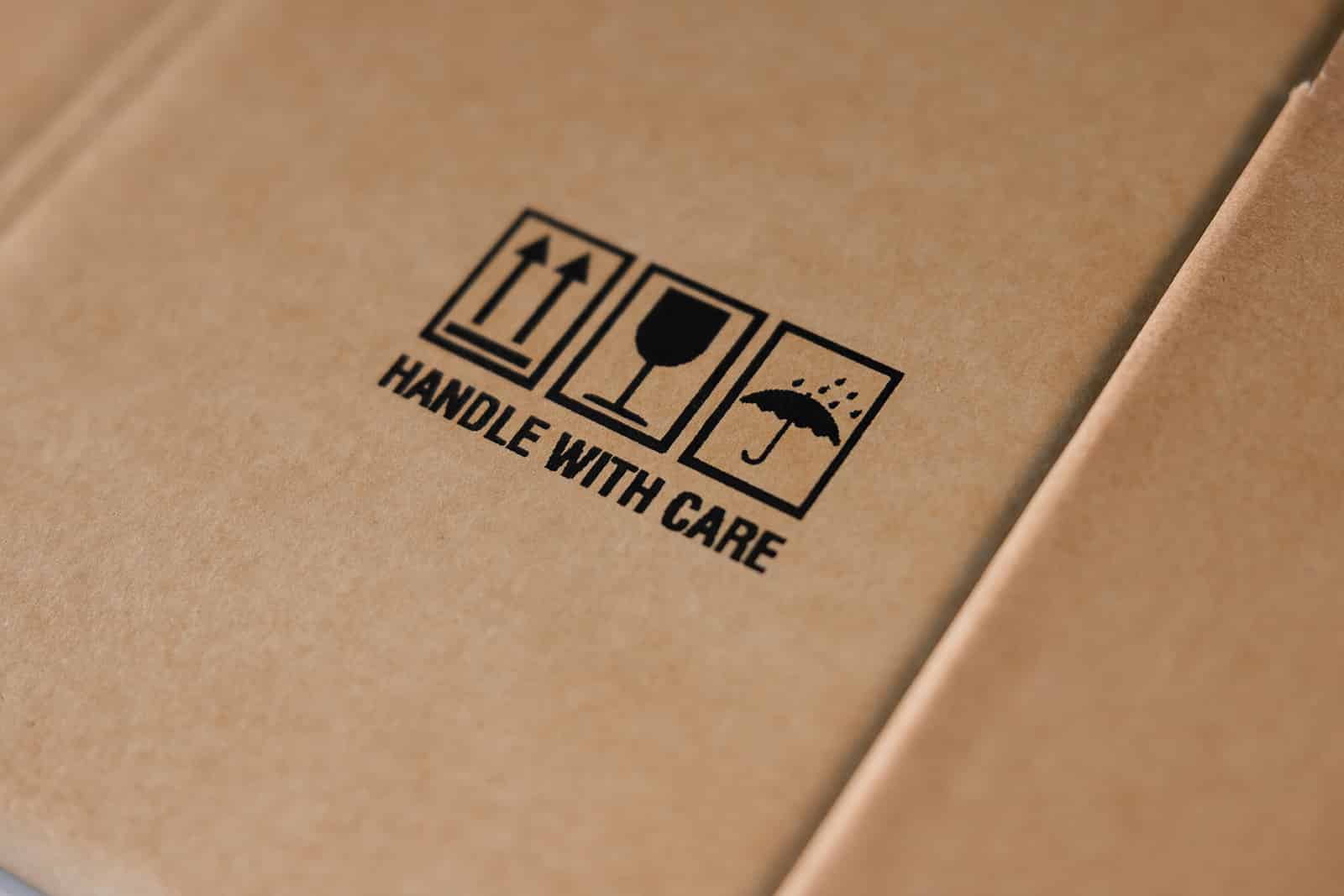
Graphic/logo
Logos, symbols or simple graphics are printed directly onto the product - without a label and without additional process steps. Suitable for brand labeling, instructions or visual orientation.
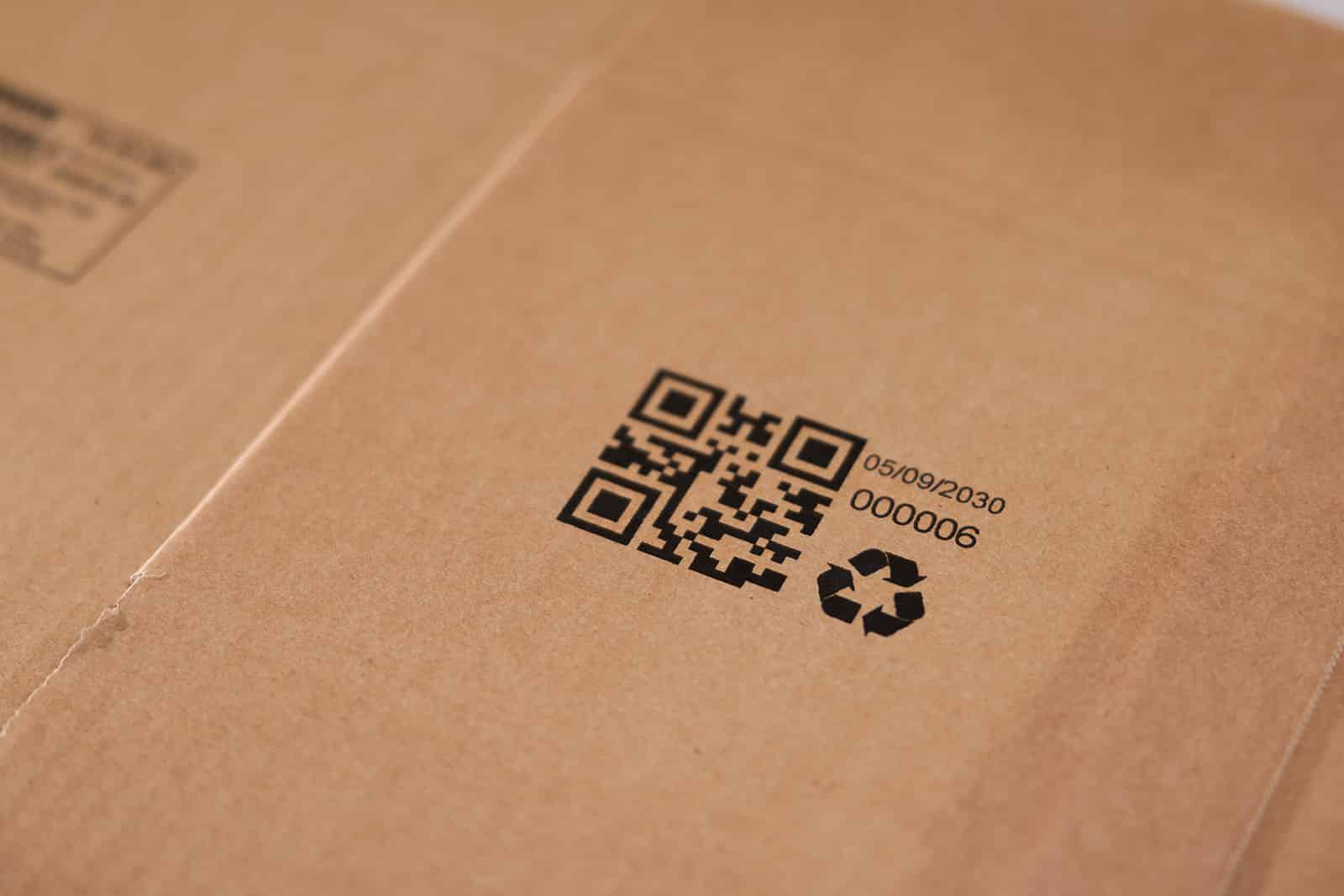
1D & 2D codes
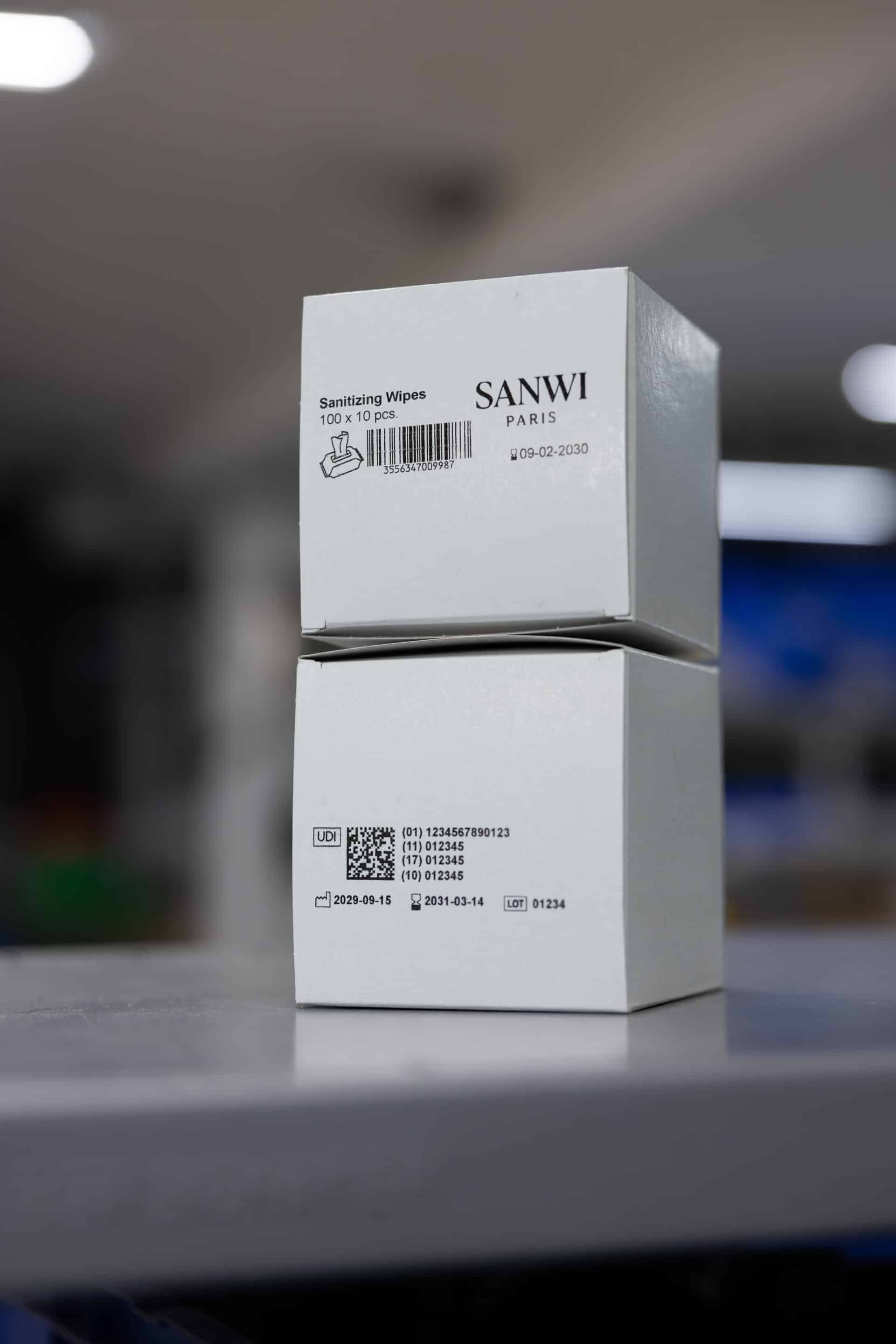
1D and 2D codes such as barcodes or QR codes are printed directly onto the product - precise, high-contrast and reliably legible. Ideal for identification, traceability and digital processing.
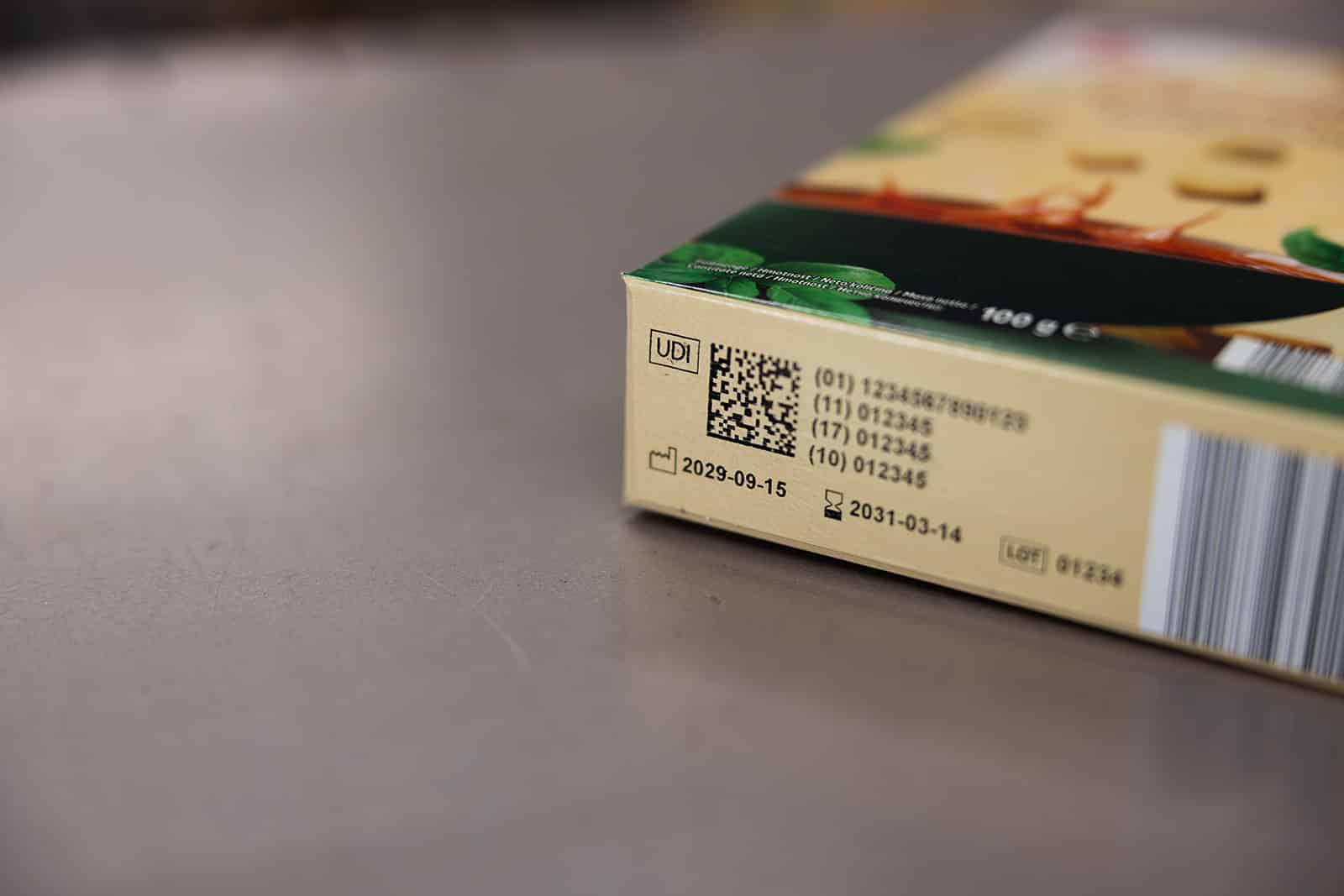
numbers
Consecutive or fixed numbers are printed directly onto the product - clean, easy to read and without a label. Ideal for serial numbers, IDs, batches or internal labeling.
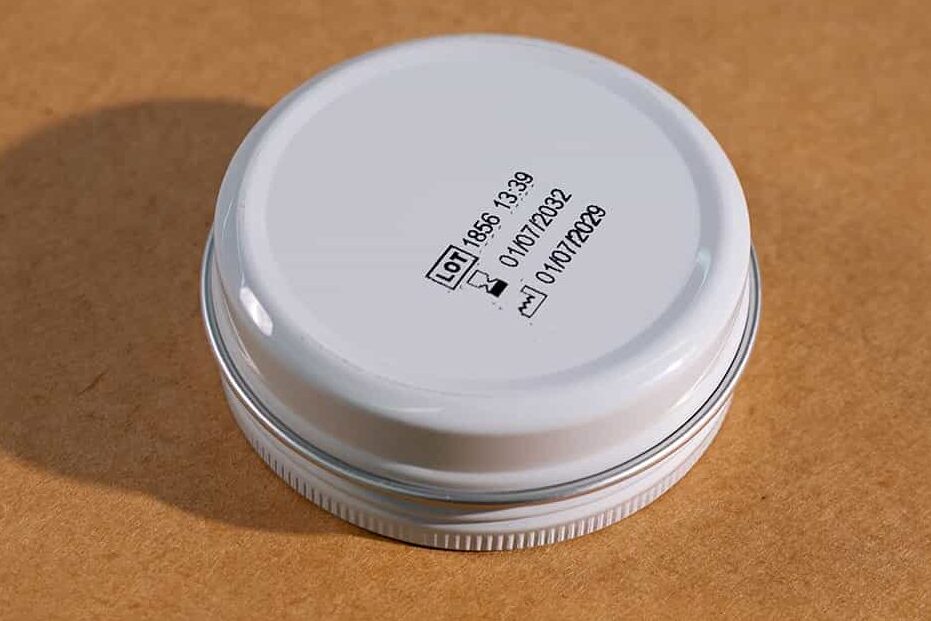
Date & time
Production, inspection or time stamps are printed directly onto the product - manually or automatically updated, without a label and without an additional work step. Ideal for traceability, documentation and quality-relevant processes.
texts
Fixed or variable texts are printed directly onto the product - e.g. item descriptions, notes or additional information. Flexibly adaptable and ready for immediate use, even with changing content.
Suitable for many materials
Suitable Surfaces
The jetStamp® 1025 offers a range of unique features that we will be happy to advise you on personally. Find out more about the comprehensive Reiner service package - you are never alone with us.
Technical specifications
Facts, Figures, and Data
| imprint | Numbers, date, time, text, 1D & 2D code sequential, graphics |
|---|---|
| Prints | PCset graphic, MOBILEset graphic, Word, Excel, label software, ERP systems, e.g., SAP, Oracle, Microsoft Dynamics, Lexware |
| display | With display |
| Dimensions (L x W x H) | 195 x 100 x 200 mm |
| Weight | approx. 900 g |
| data transmission | USB, Bluetooth, WiFi/WLAN capable |
| Storable print images | 255 storable print images |
| printing technology | inkjet |
| Max. impression size (W x H) | 85 x 26 mm (≈ 1 inch) |
| Max. printing speed | < 1 s/impression |
| print resolution | 300 dots per inch |
| Battery capacity | up to 1,000 impressions |
| Ink Colors | Black and Yellow |
Case Studies
From the field
Simple, fast and ready for immediate use: With just a few simple steps, you can place individual labels exactly where they are needed - flexibly, cleanly and without time-consuming preparation.
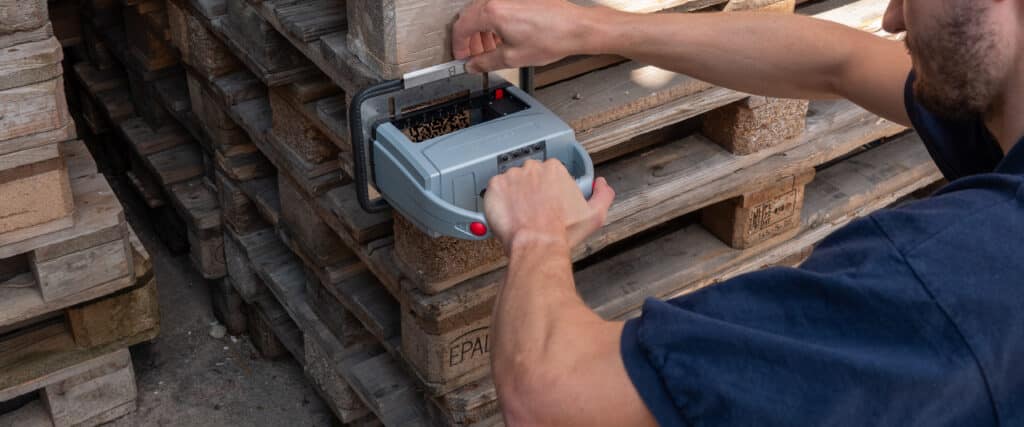
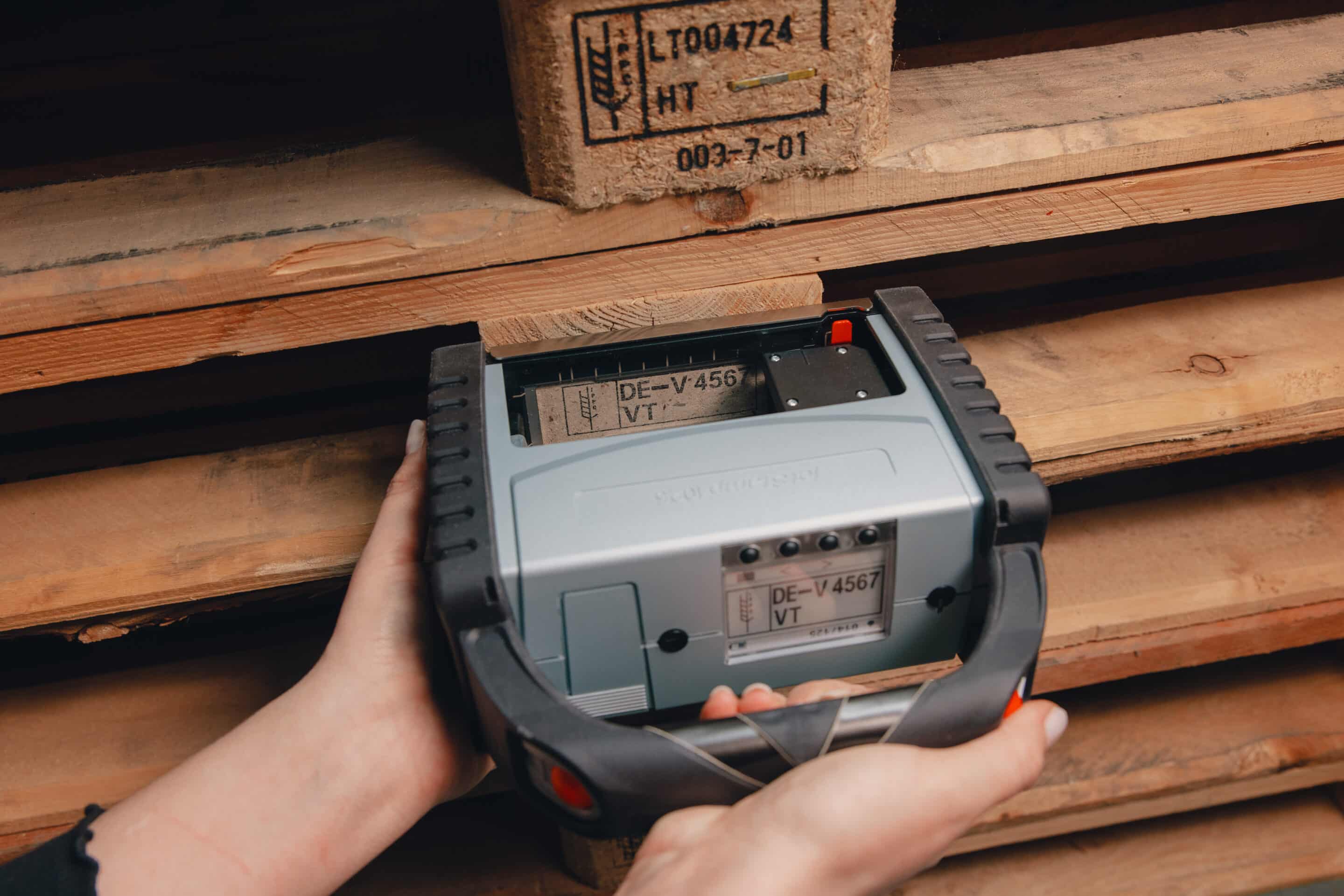
Versatile and easy to use: Print the IPPC logo
How pallet and wooden crate manufacturers can use the REINER jetStamp® 1025 to apply the IPPC symbol quickly, in compliance with standards and...
Learn more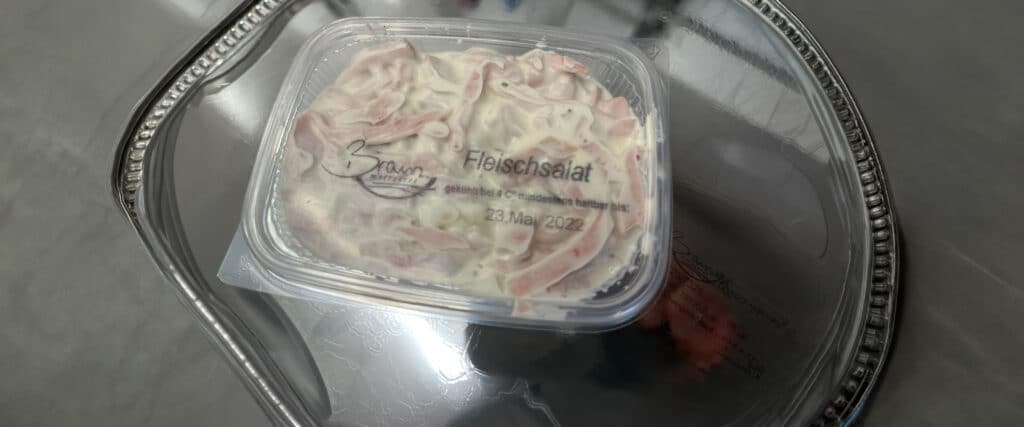
Clear Price Labeling for Food Products
How Metzgerei Braun uses the REINER jetStamp® 1025 to print price tags directly onto packaging, simplifying processes...
Learn more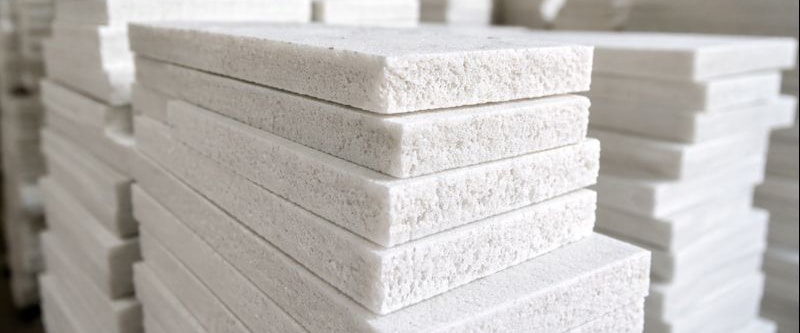
Direct Printing Instead of Labels: Printing on Foam
How Bebermeier Schaumstoffe GmbH from Extertal uses the REINER jetStamp® 1025 and MP3 ink to improve traceability and...
Learn more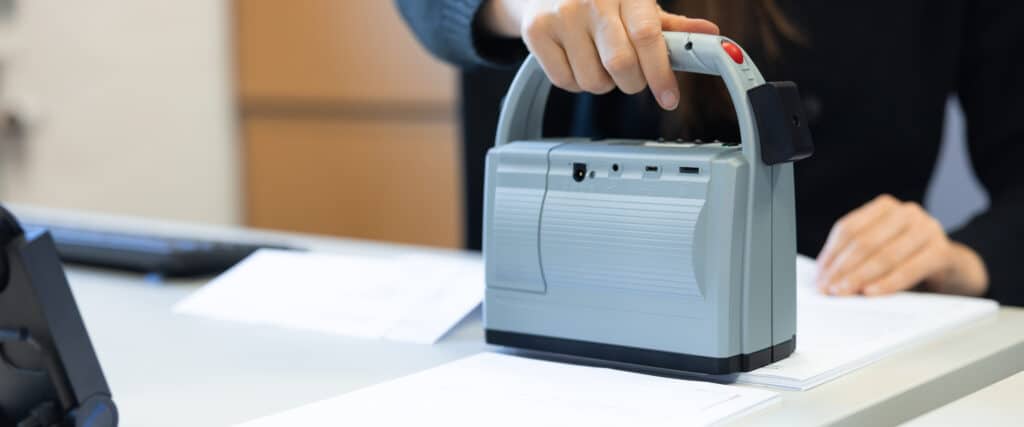
Direct Printing from the SAP System
Client Advanced Applications GmbHSAP consulting company based in Rottweil, active in numerous industries such as high-tech, medical technology, automotive,...
Learn more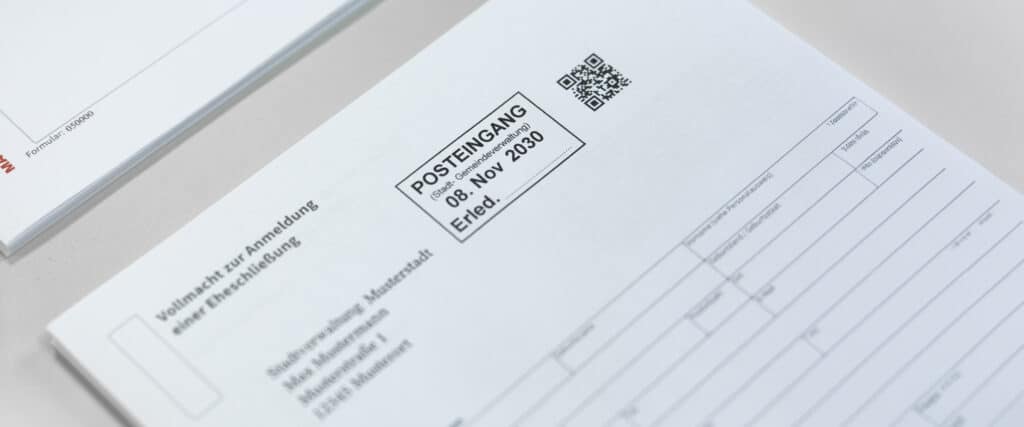
Secure digitization of documents at public authorities and municipalities
Customer The city of Lüneburg processes a large number of incoming documents by traditional mail every day. The aim...
Learn more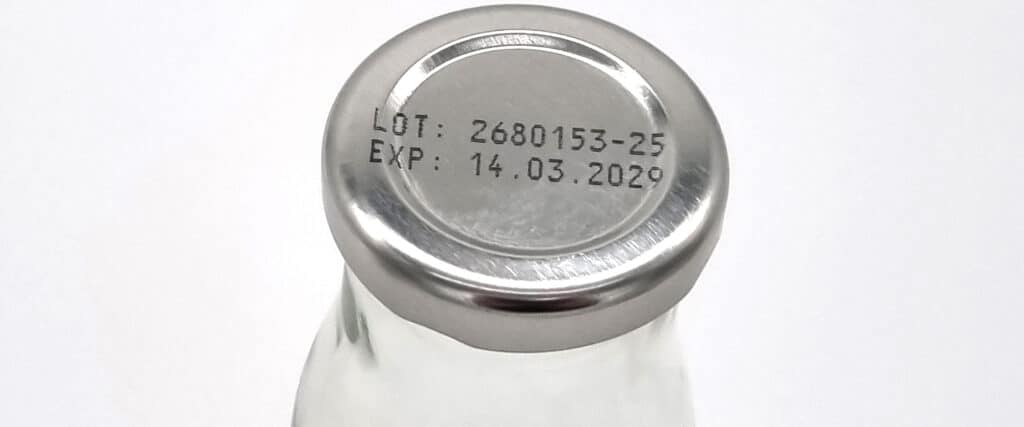
Printing on Closures and Lids
Customer A medium-sized manufacturer of delicatessen products from North Rhine-Westphalia produces sauces and dressings in glass and plastic packaging....
Learn more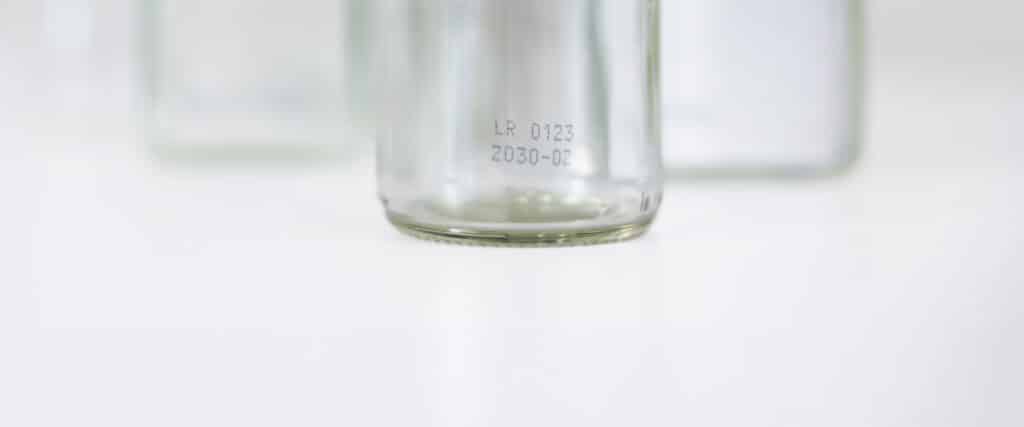
Direct marking on glass packaging
Customer A medium-sized beverage manufacturer from Baden-Württemberg produces fruit juices and soft drinks in glass bottles. For each bottling...
Learn more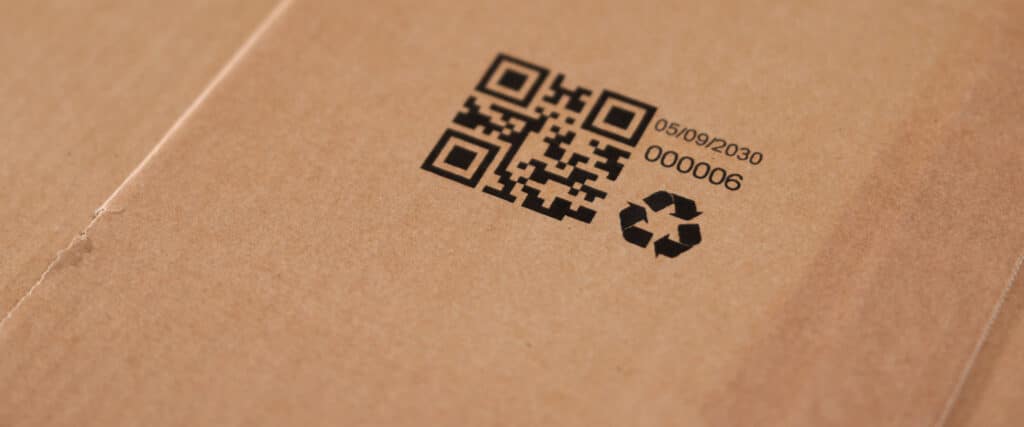
Flexible labeling of outer cartons
Customer A medium-sized manufacturer of dry products from Bavaria produces various product lines for the national trade as well as for...
Learn more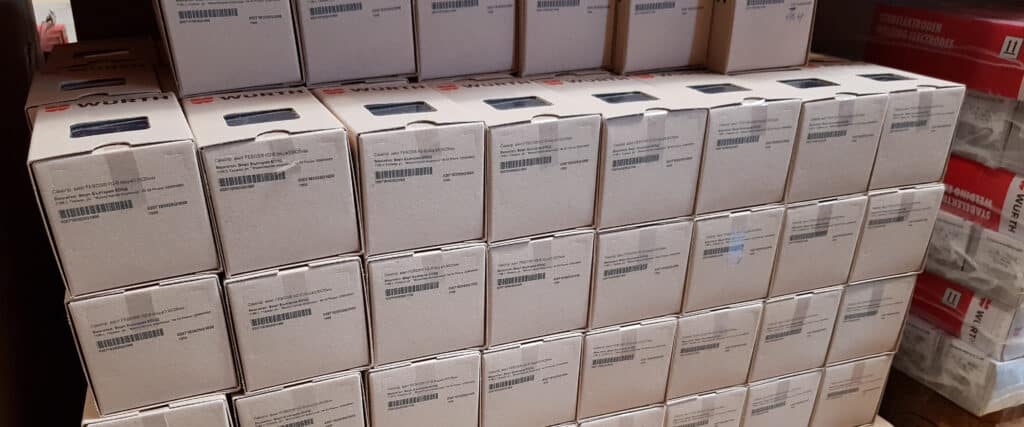
Würth relies on packaging marking with the jetStamp® 1025
Customer The Würth Group is a global specialist for assembly and fastening materials. The company is active in...
Learn more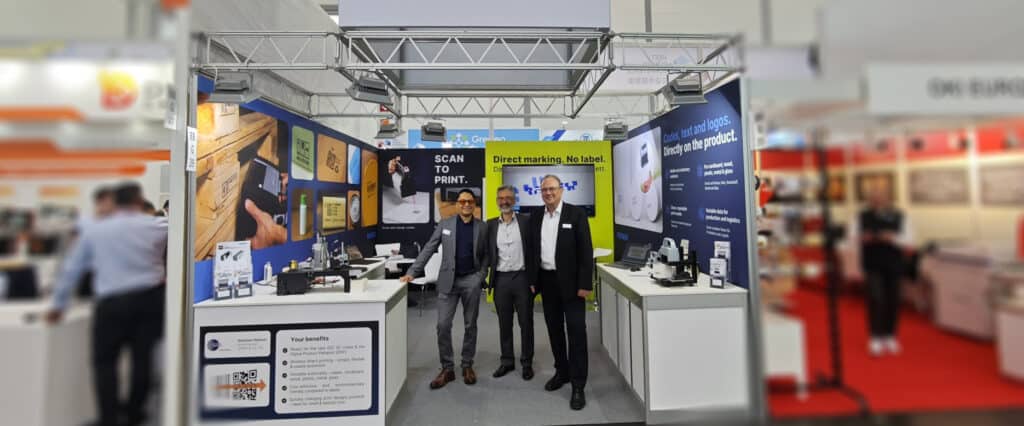
REINER at interpack: Live demos, international discussions and new impulses for labeling
The interpack is one of the most important meeting places for the packaging industry - and was once again a...
Learn more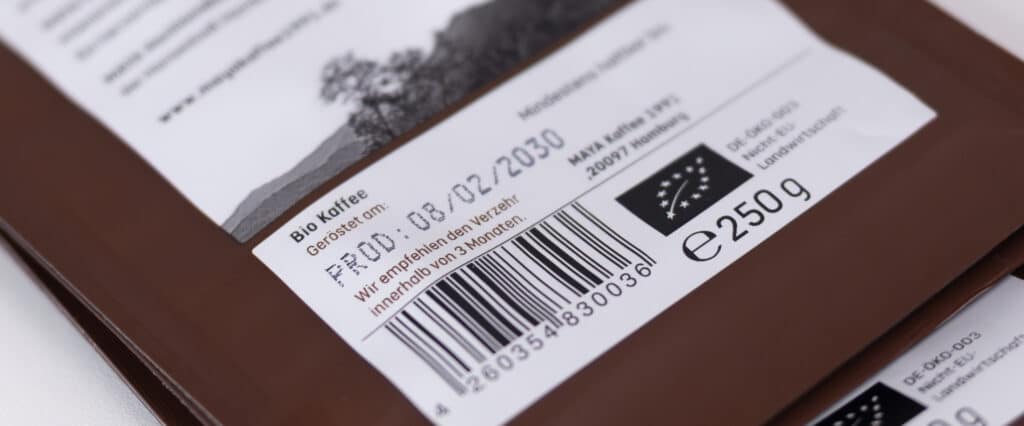
Flexibly Labeling Best-By Dates and Batches for Small Batches
Whether it's deli items, baked goods, confectionery, beverages, or artisanal specialties: Small food businesses often produce a variety of items in...
Learn more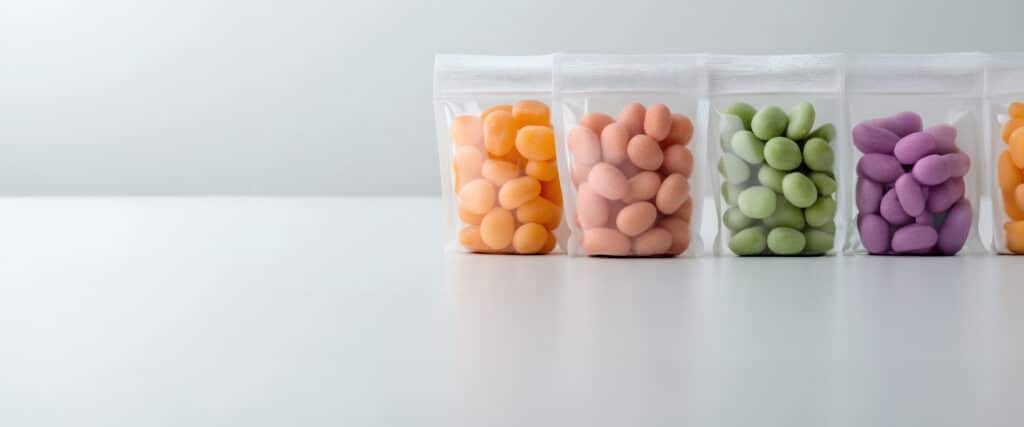
Labeling Confectionery—Without Any Labels at All
Customer For over 75 years, Dulces y Chocolates La Esperanza has been synonymous with high-quality chocolate and cocoa products....
Learn more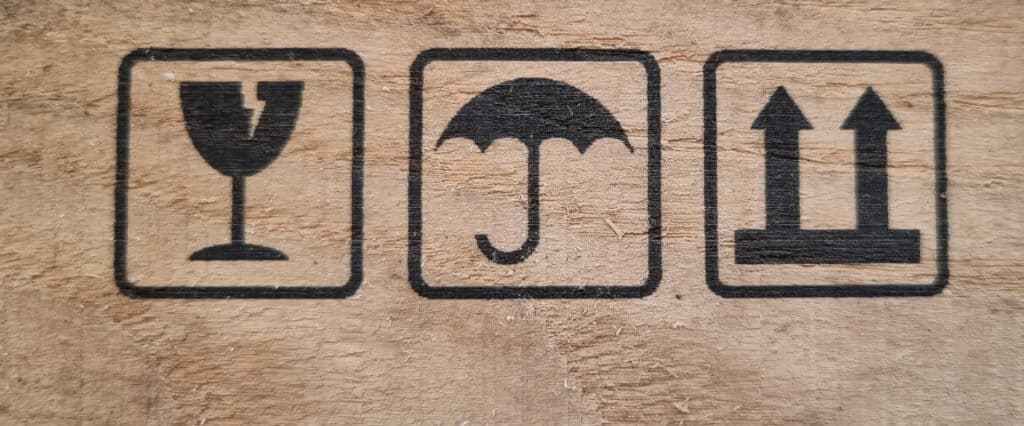
Labeling wooden crates for shipping
Client: An internationally active plant manufacturer based in southern Germany produces custom-built machinery for customers worldwide. For shipping, they...
Learn moreAccessories and extensions
Tailored to Your Application
Discover the right accessories and practical add-ons to perfectly complement your device and customize it to your specific needs.
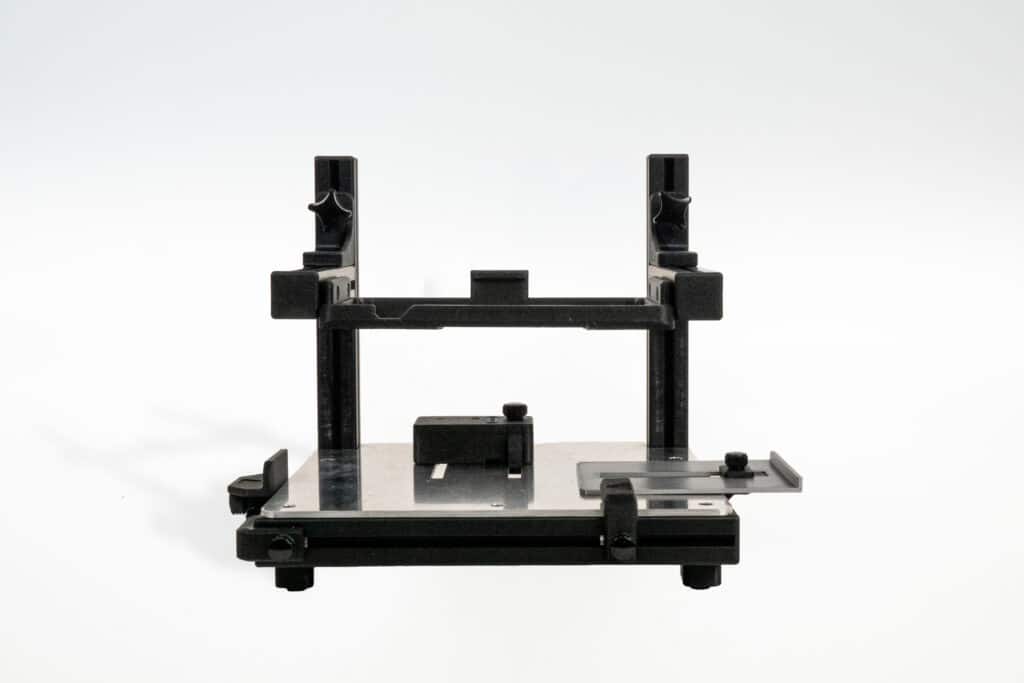

Repeatable positioning
Packaging Print Station PS100
Manual single feeder for repeatable, reliable packaging labeling.
NEW
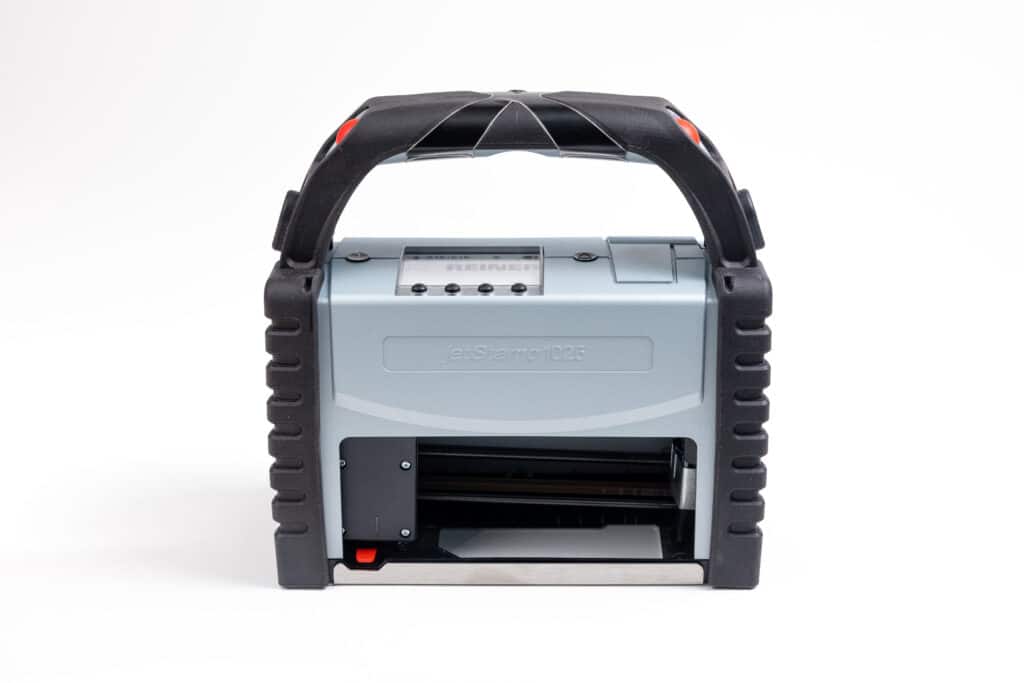
Protection against falls
Protective Silicone Cover
Protects the device from dust, dirt and shocks in daily use.
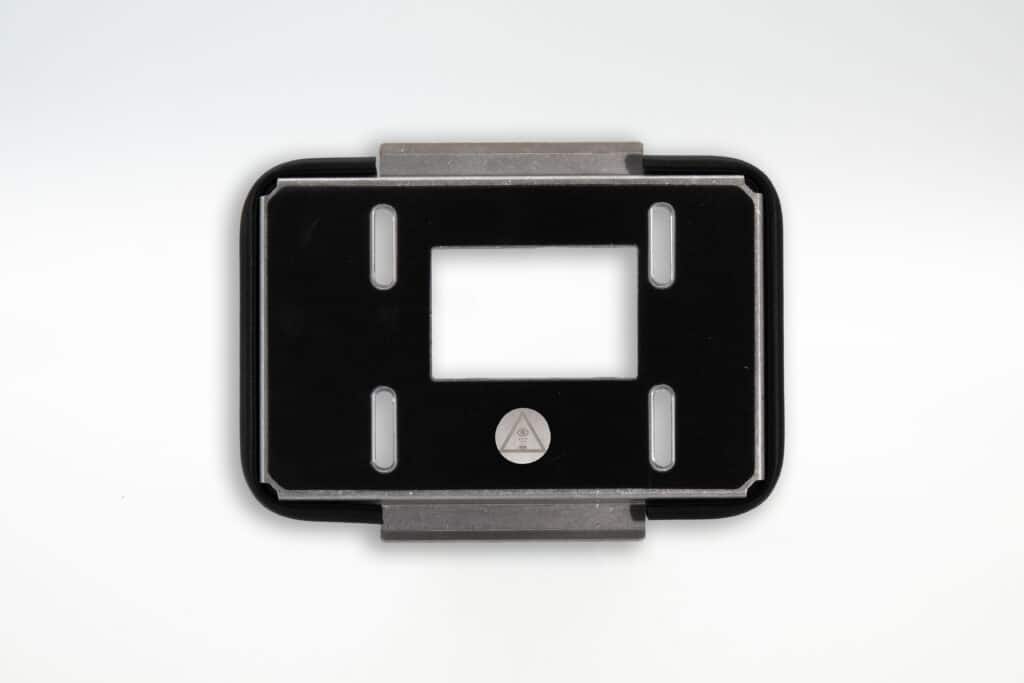
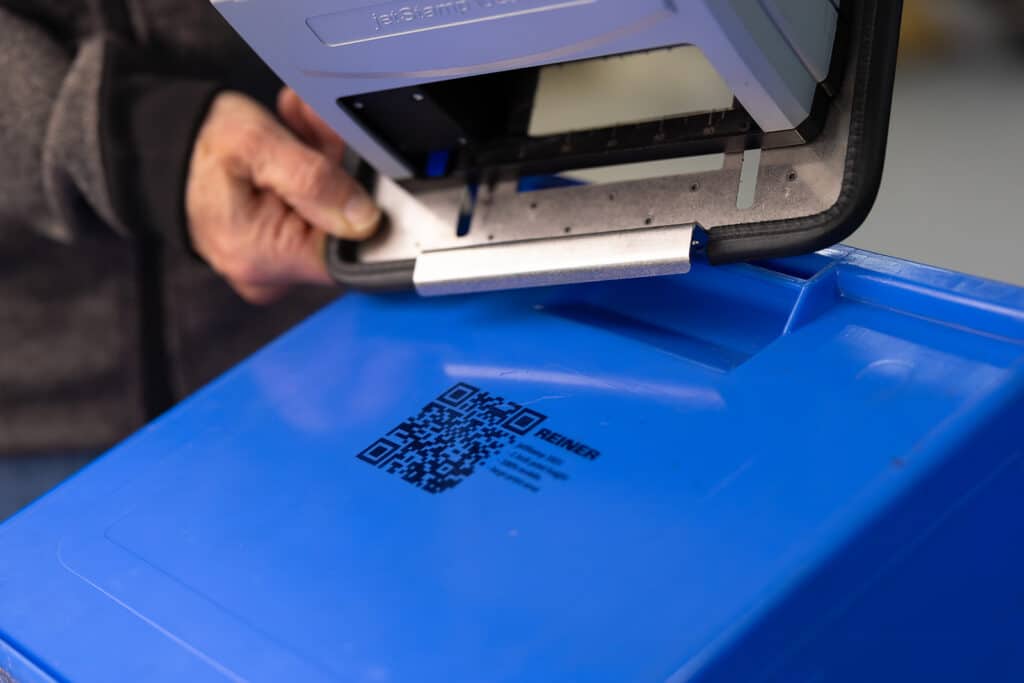
Extended to 2 inches on cardboard & paperboard
2-Inch print extension GRIP
Extends the print area from 1 inch to 2 inches - for cardboard and packaging.
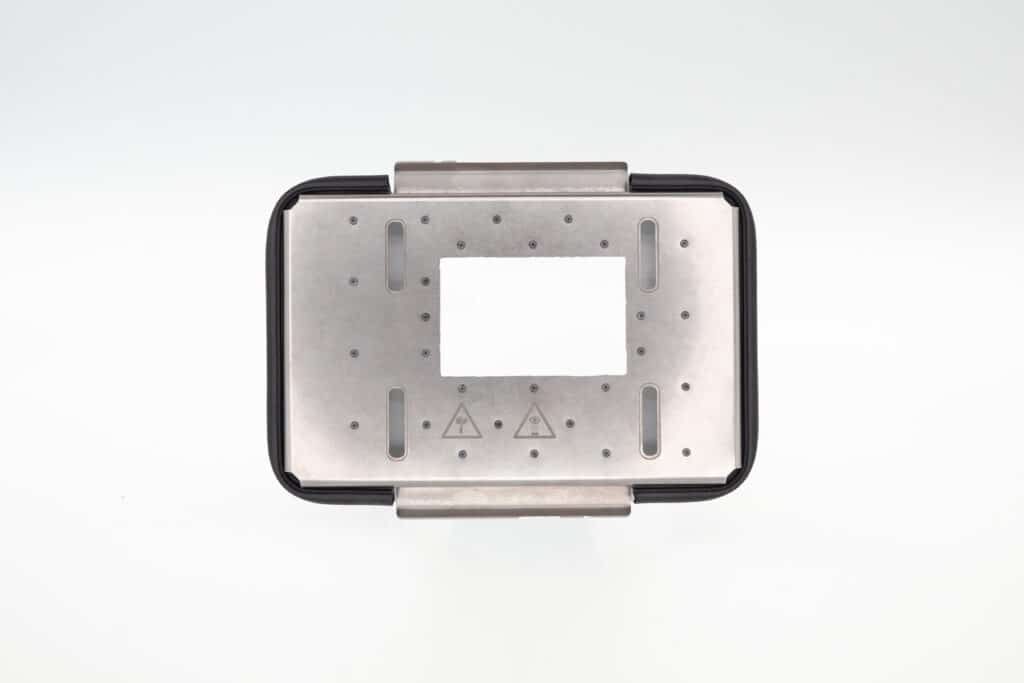
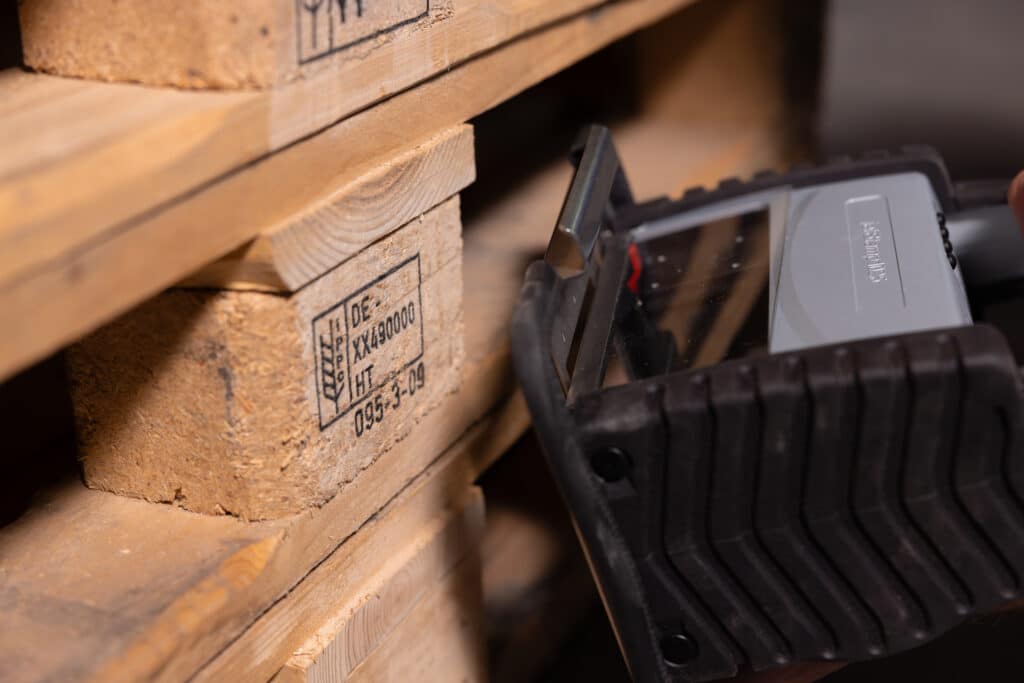
2 inch prints on wood
2-Inch print extension SPIKES
Extends the print area from 1 inch to 2 inches - for wood and pallets.
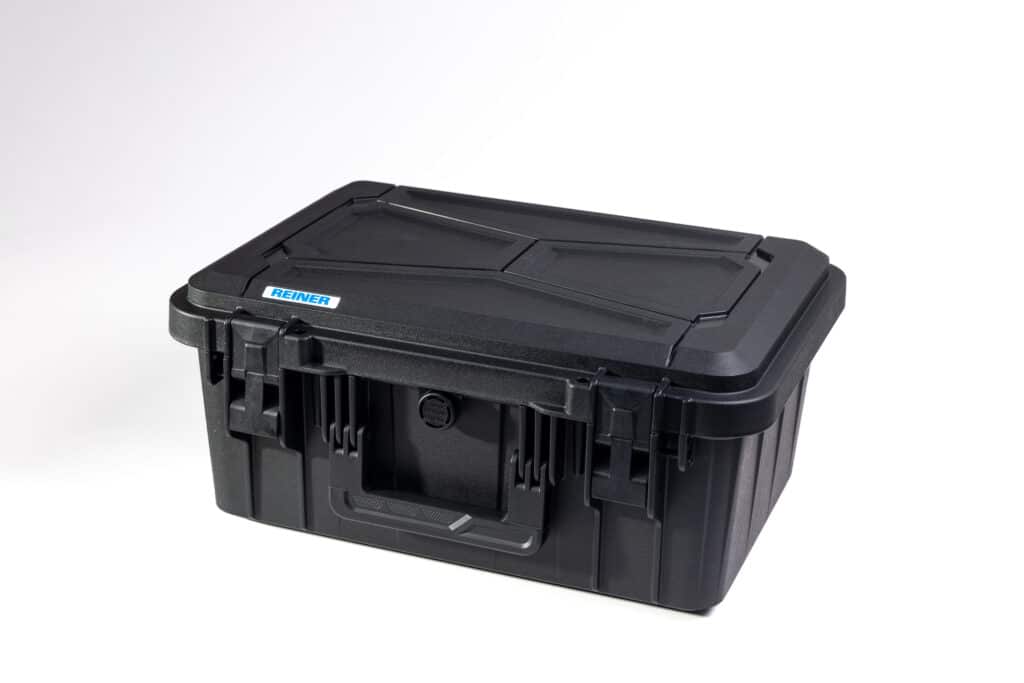
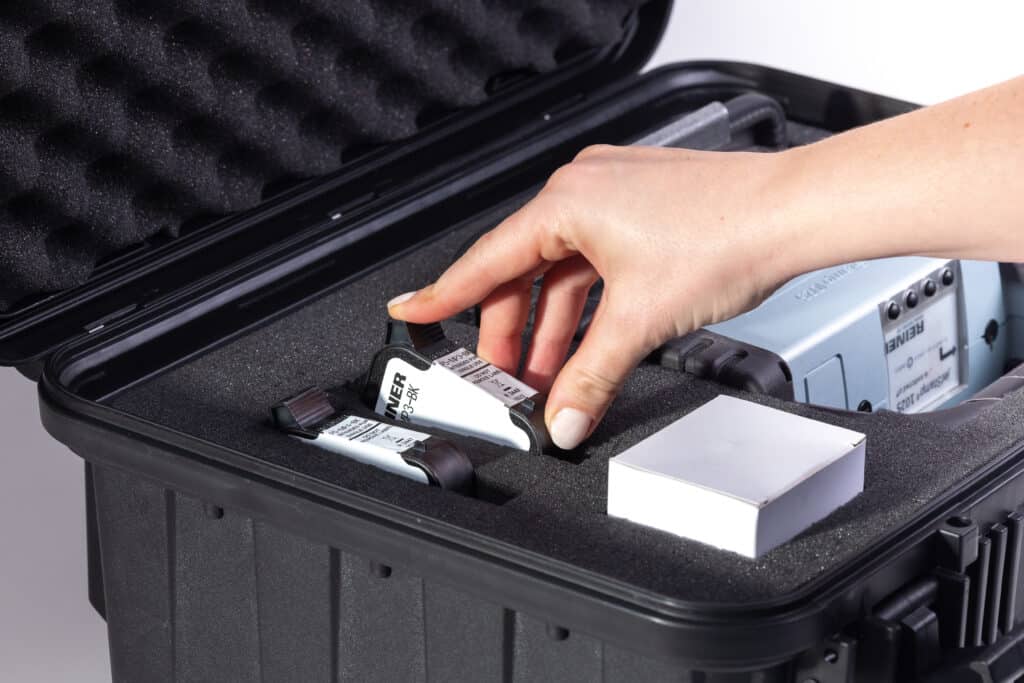
Safe transportation
jetSafe PRO Case
Robust transport case with customizable interior - space for device and accessories.
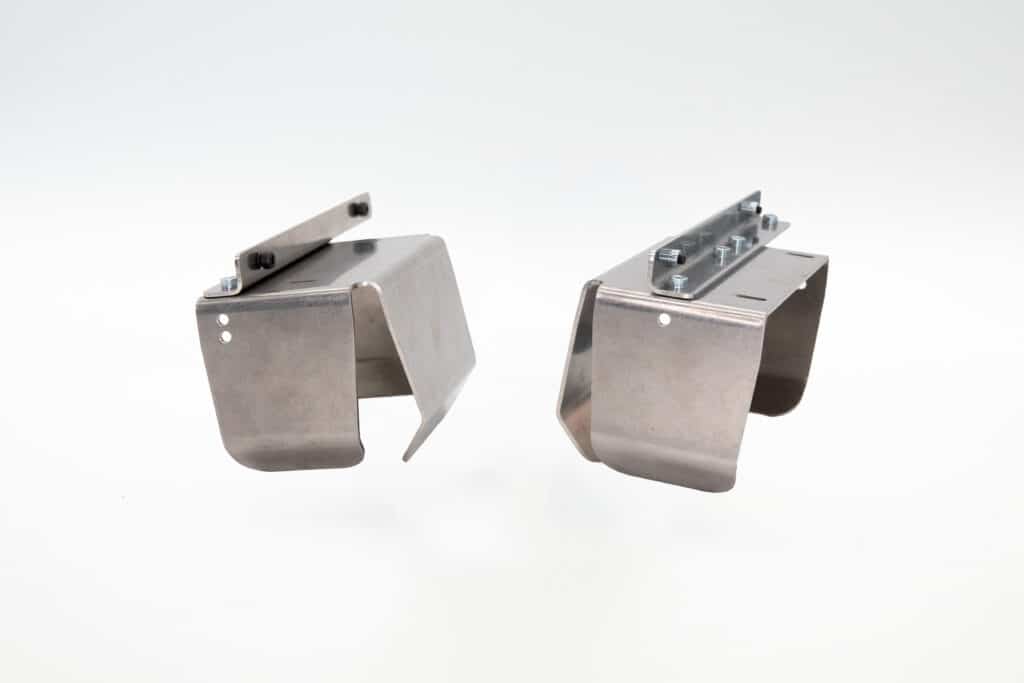
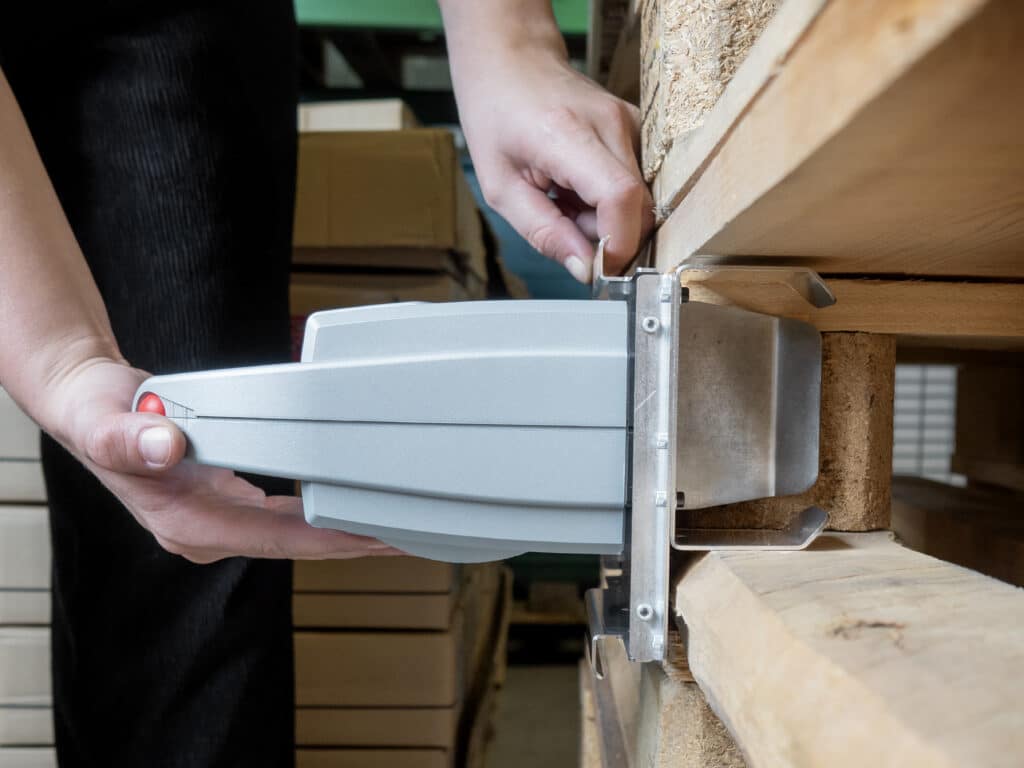
EPAL - Wood
Centering Aid for EPAL Pallet Block
Enables precise, centered 2-inch impressions on standardized EPAL pallet blocks - securely guided, without slipping.
Automatic document labeling
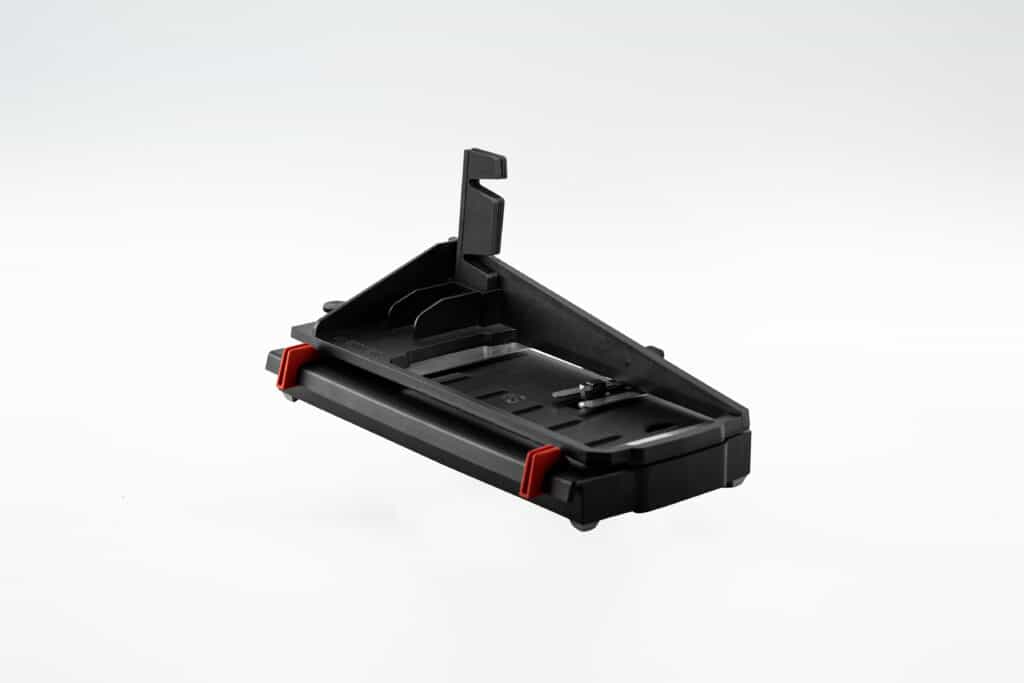
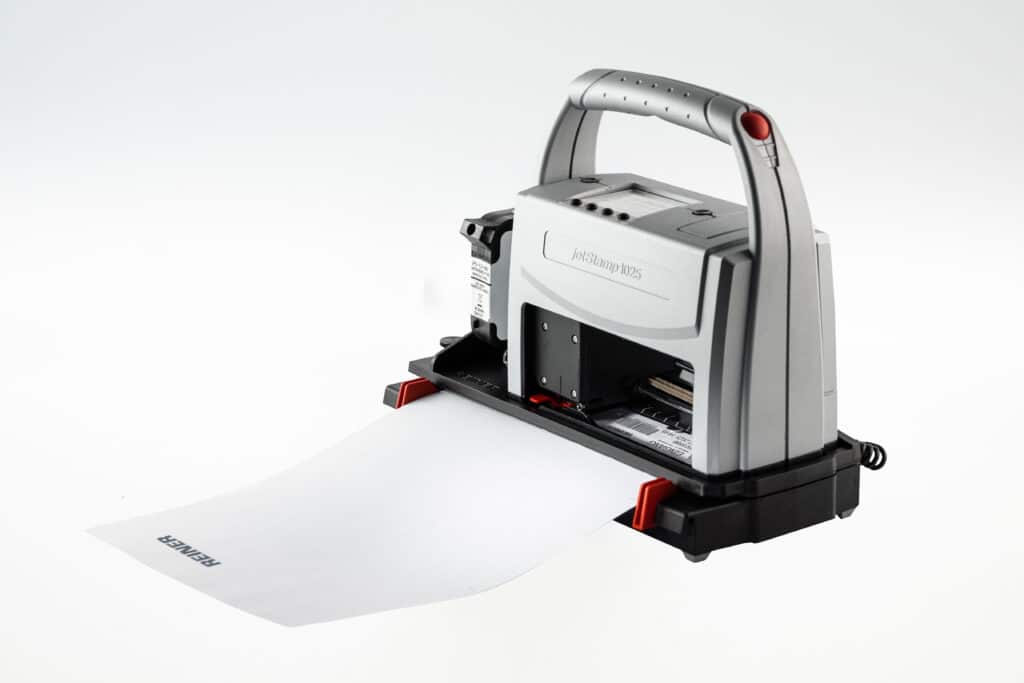
Paper Print Station PS12
Automatic printing station for paper, cardboard and cardboard up to A4 - uniform labeling directly at the workstation.
Precise positioning
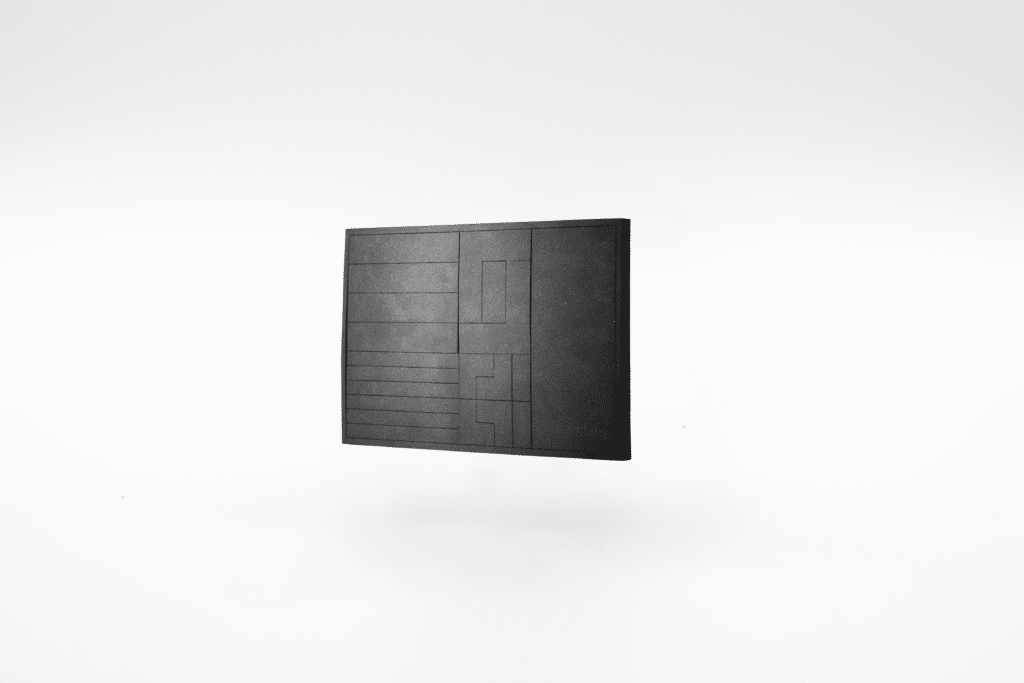
Positioning mat
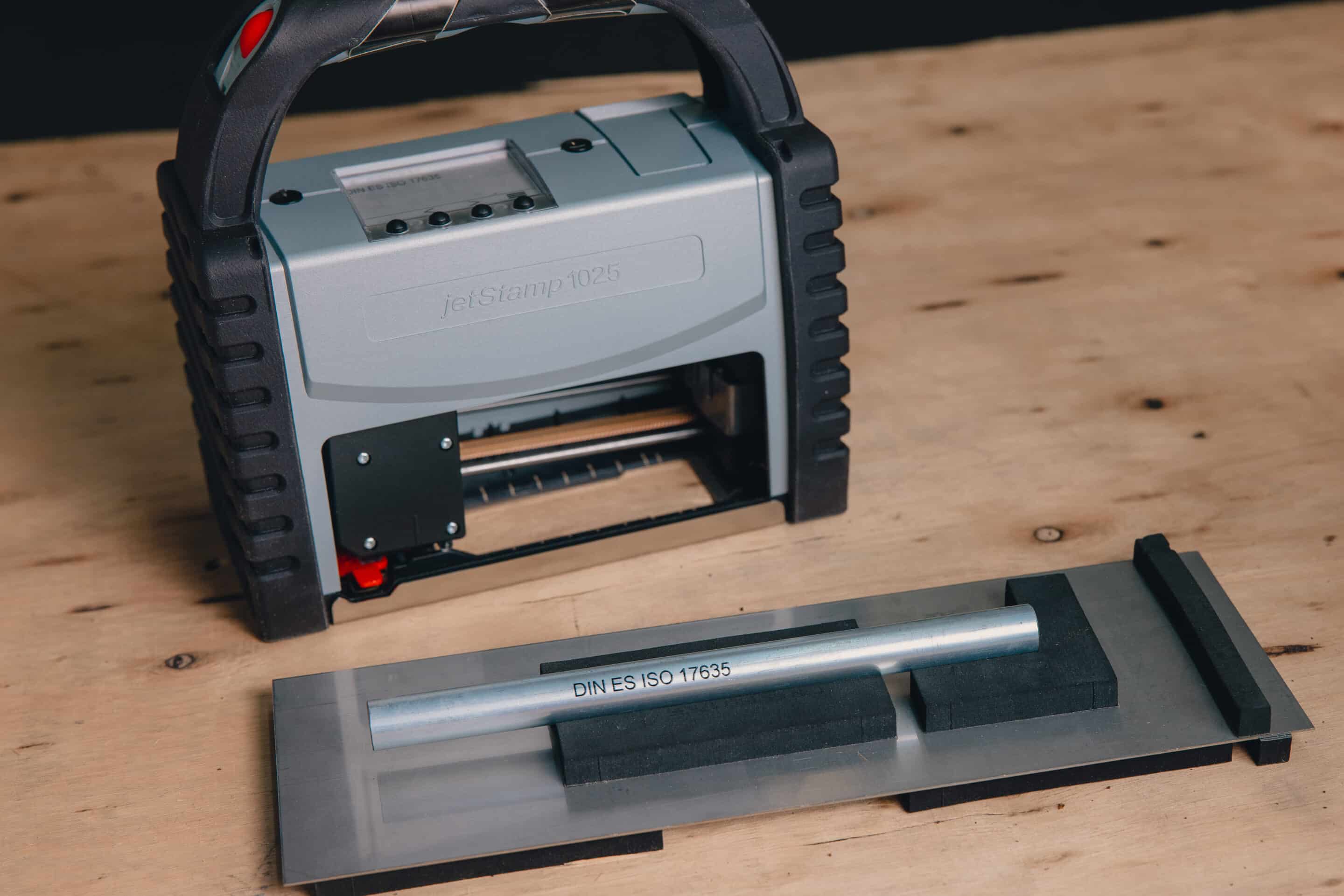
For a consistent impression on small or curved objects
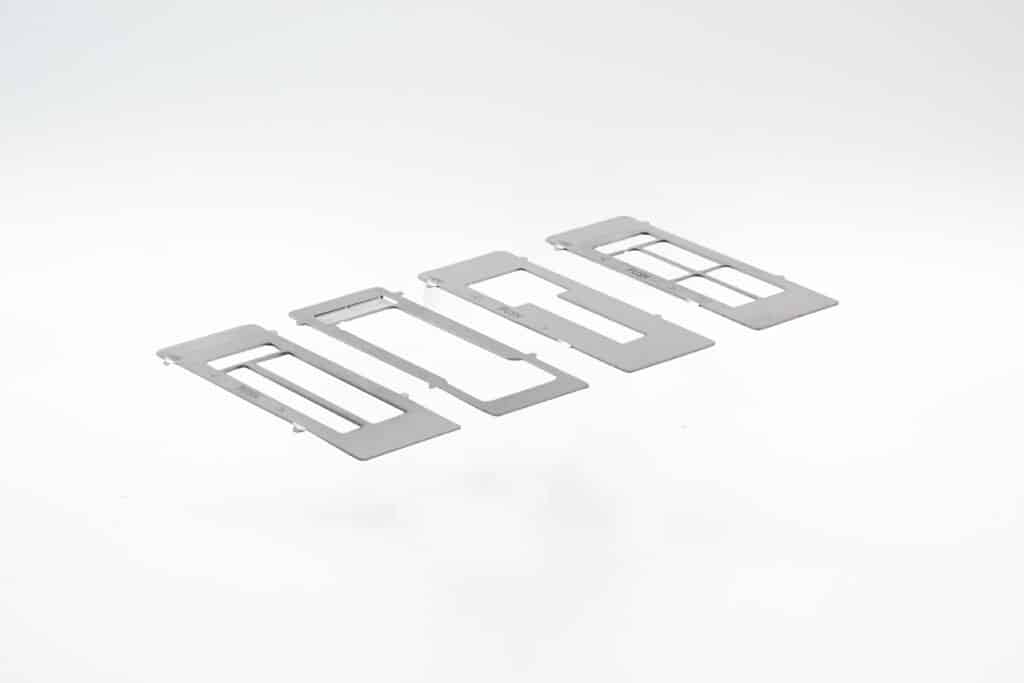
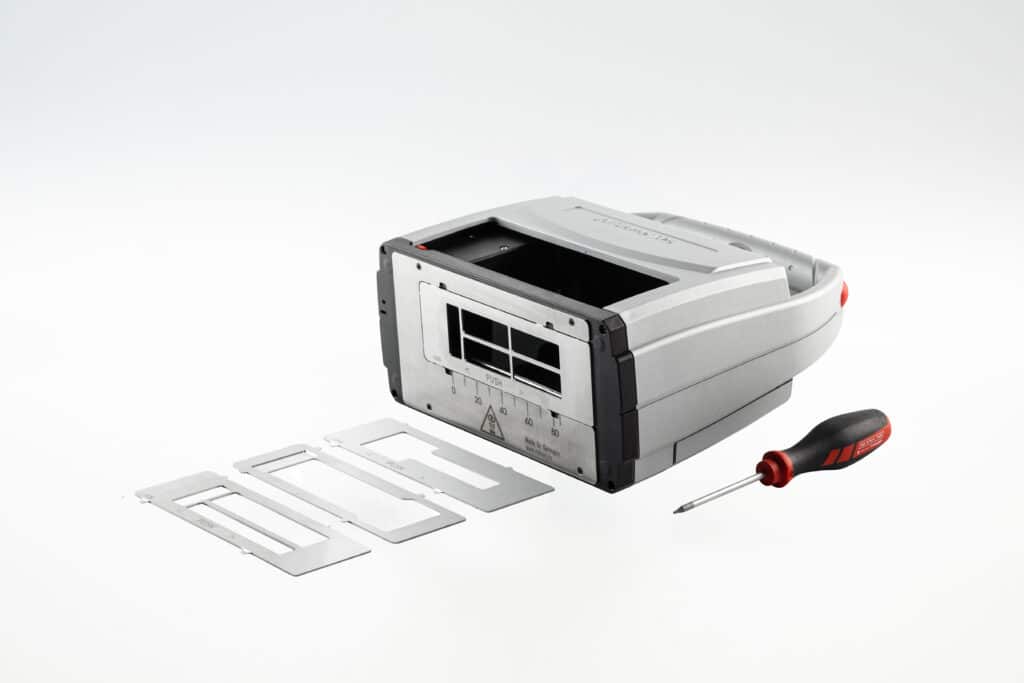
Fixed impression area for small surfaces
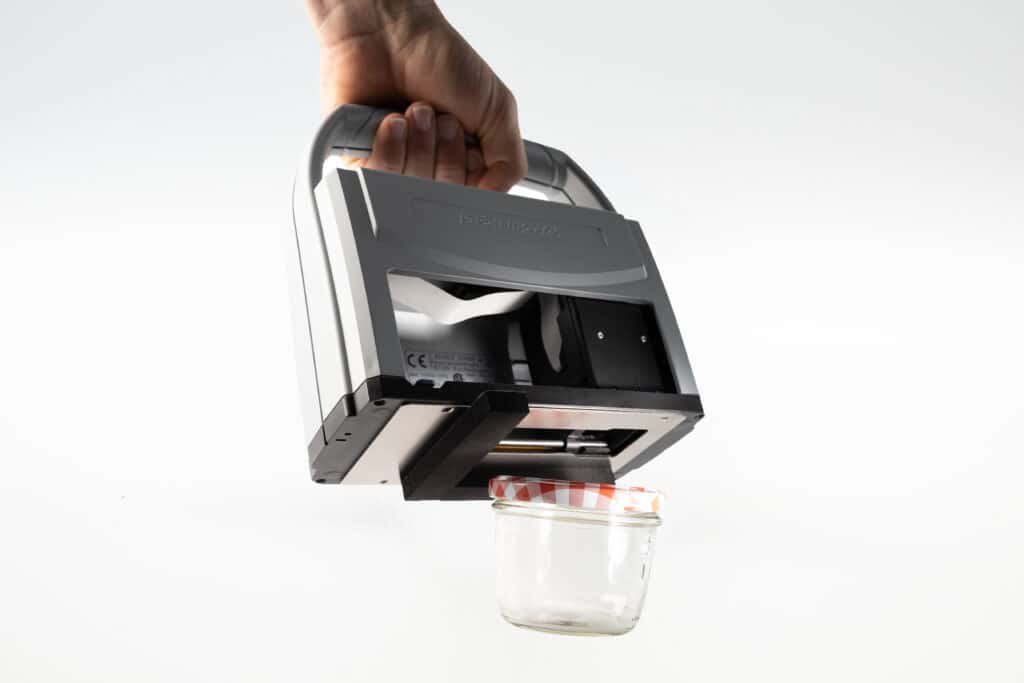
Positioning Template Set
Securely fixes the imprint area on small, flexible and round objects - for reproducible markings with the jetStamp® 1025.
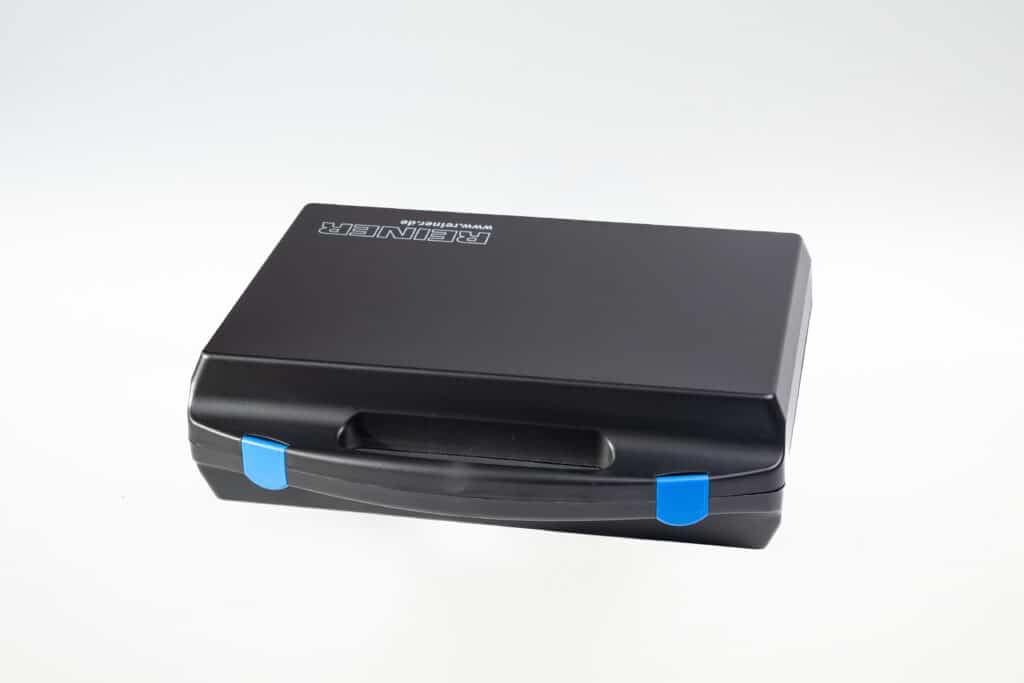
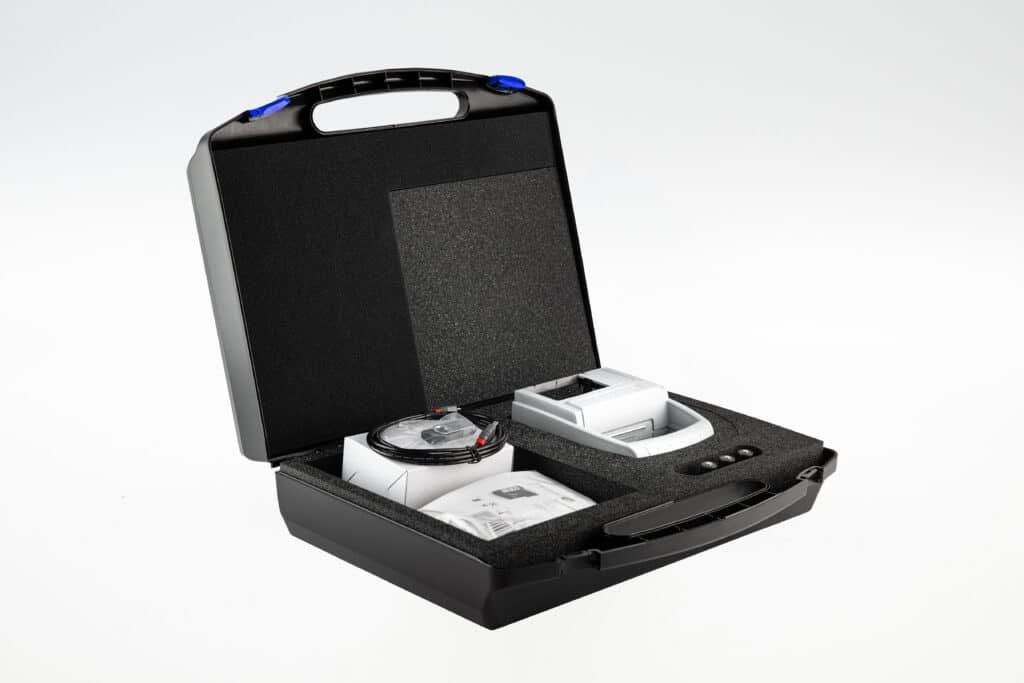
Safe transportation
jetSafe BASIC Case
Safe transportation and orderly storage of your jetStamp® device.
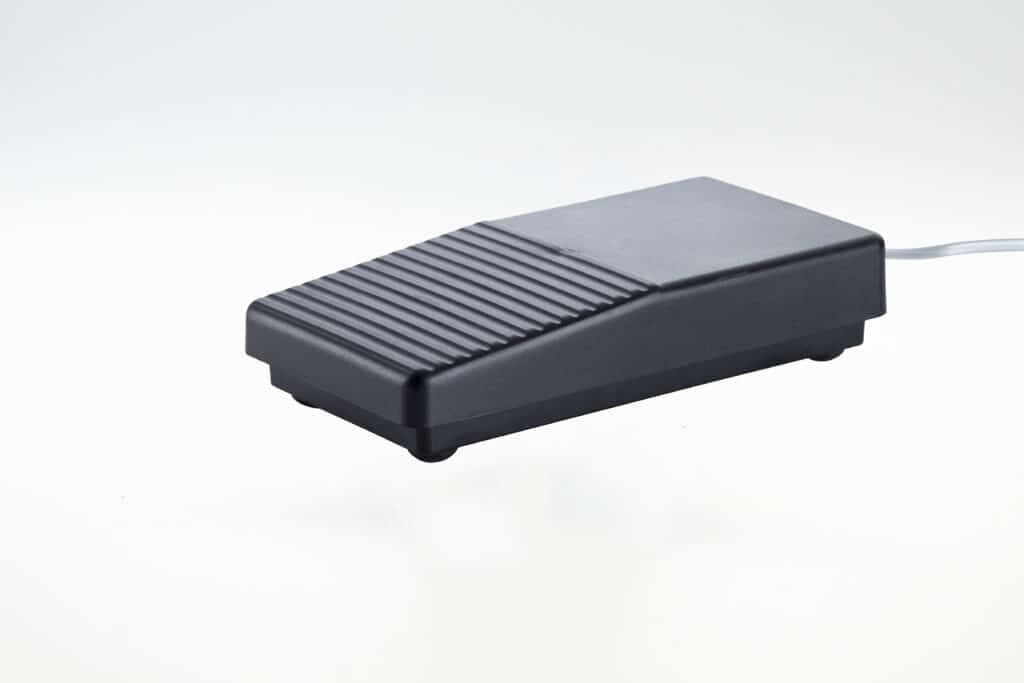
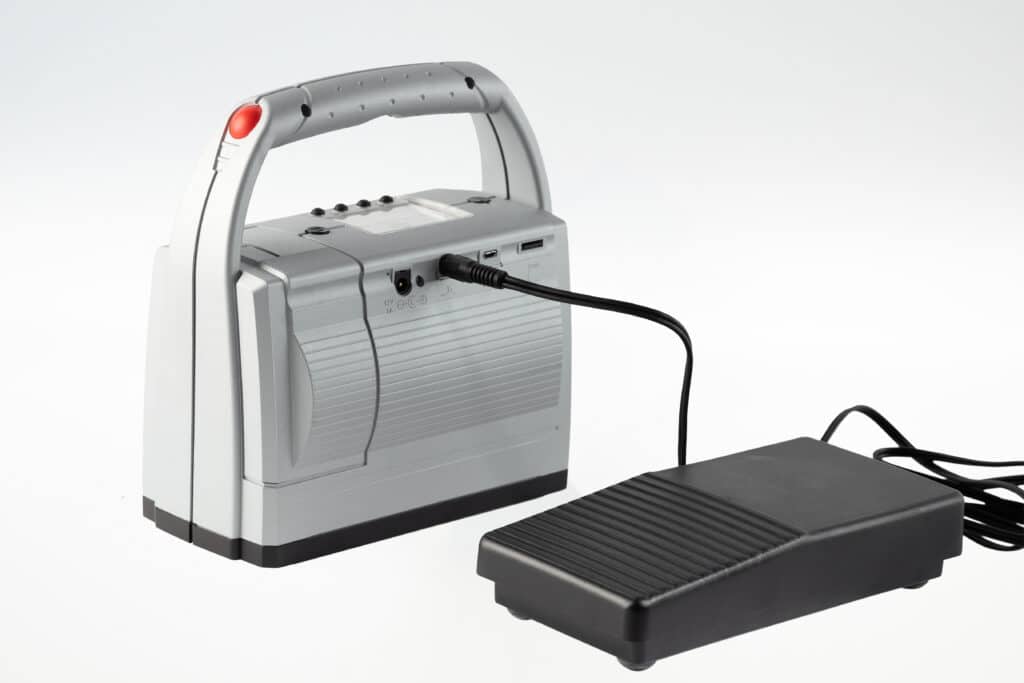
External pressure release
Foot switch
Enables external pressure release by foot or hand for ergonomic, hands-free working.
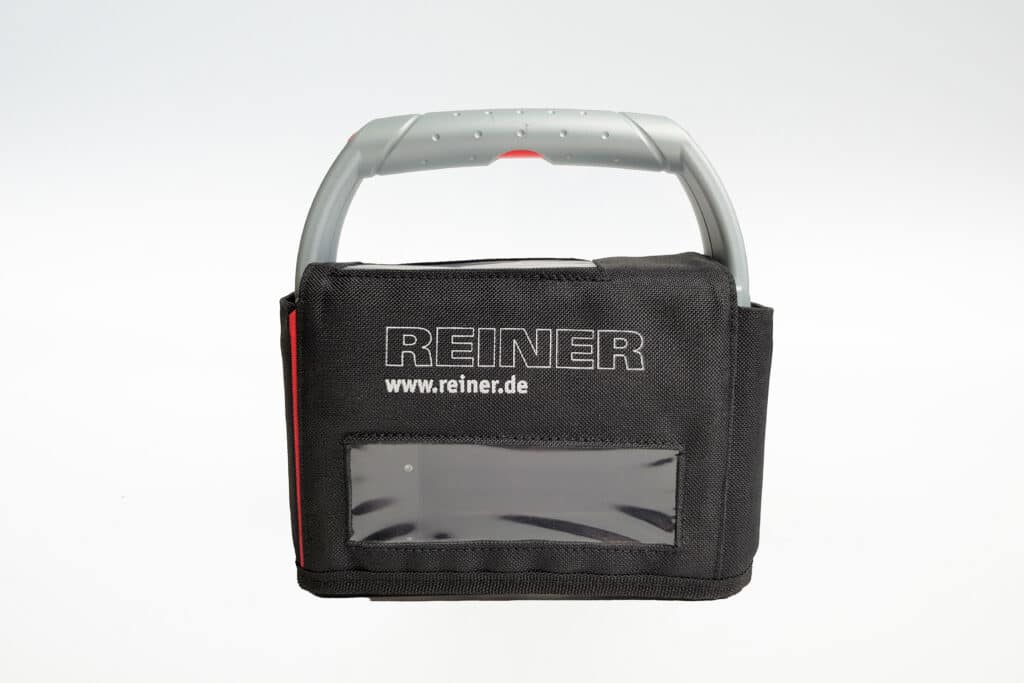
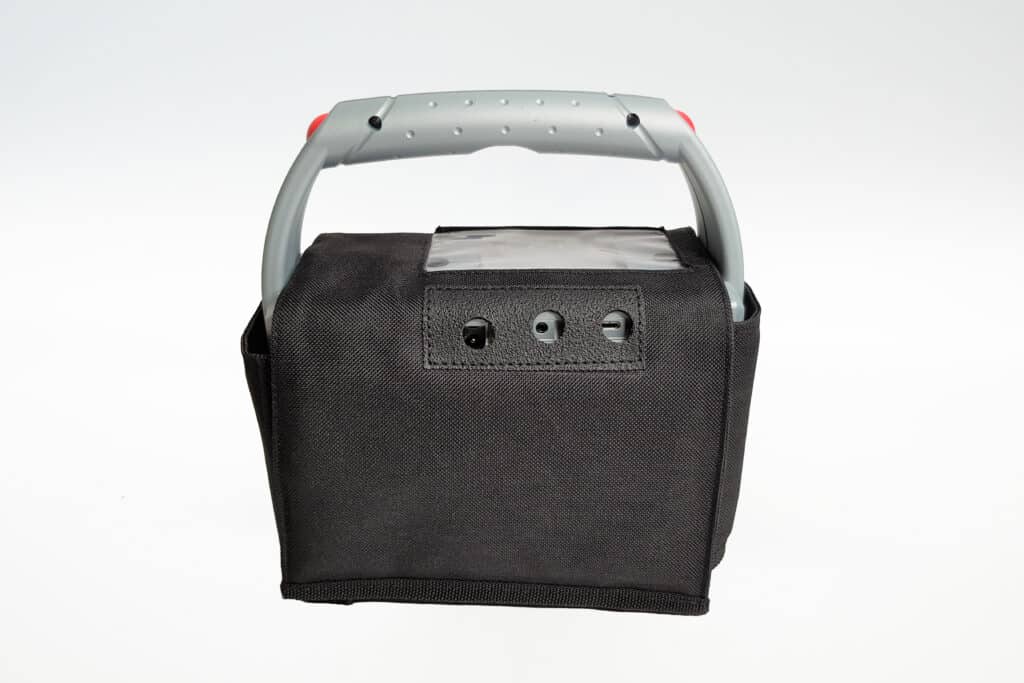
Protection from dust & dirt
Protective Textile Cover
The textile protective cover for the jetStamp® 1025 was specially developed for dusty, dirt-prone and industrial work areas.
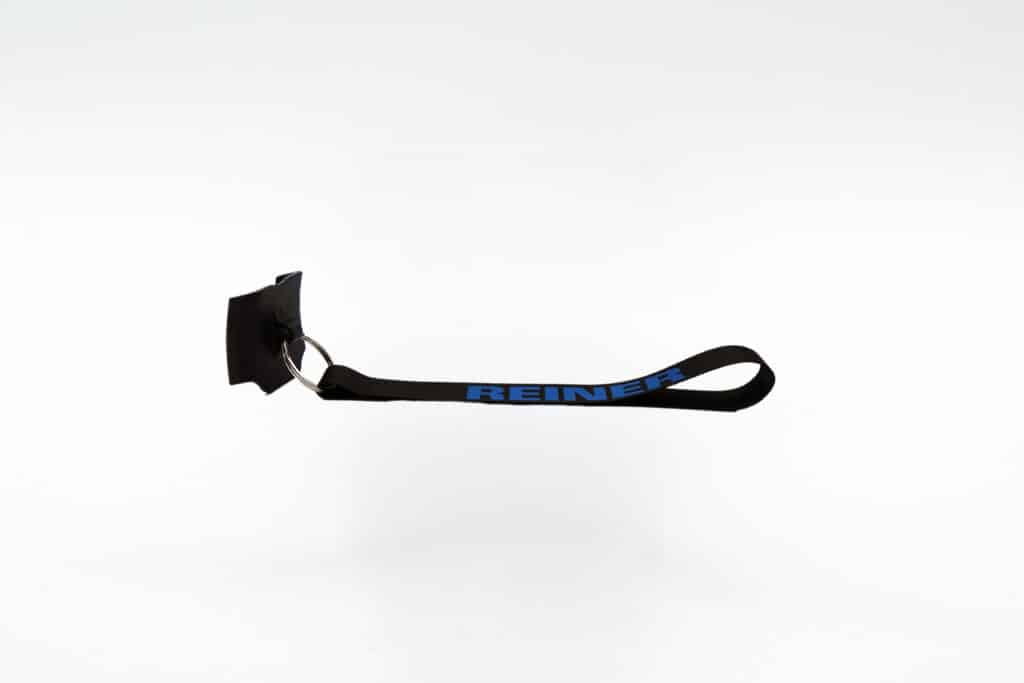
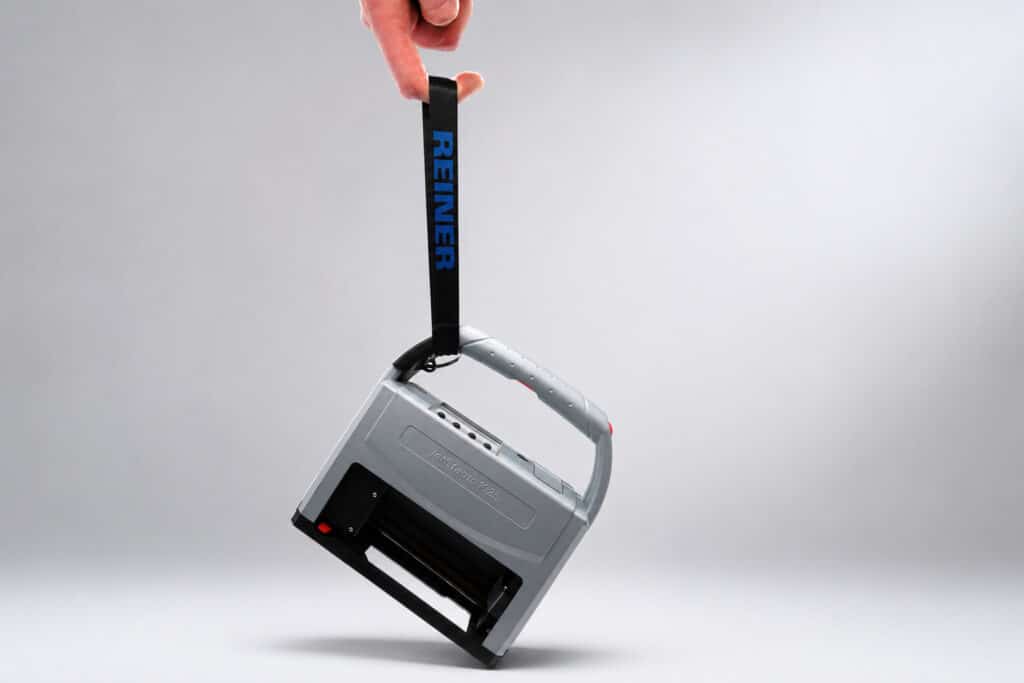
Protection against falls
Carrying Strap
Our retaining strap offers reliable protection against fall damage.
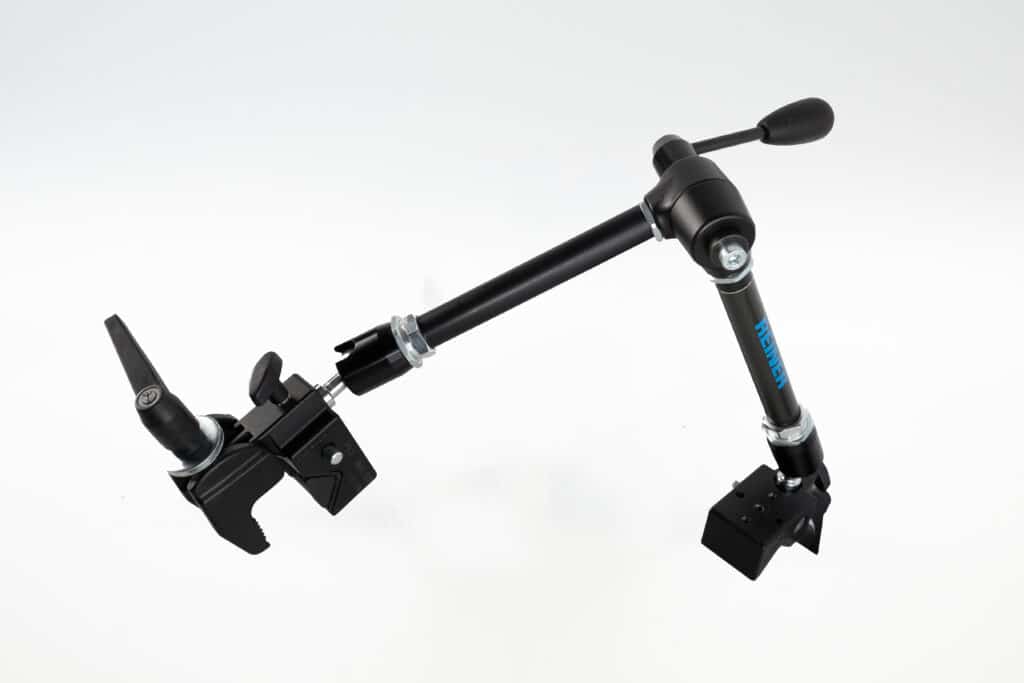
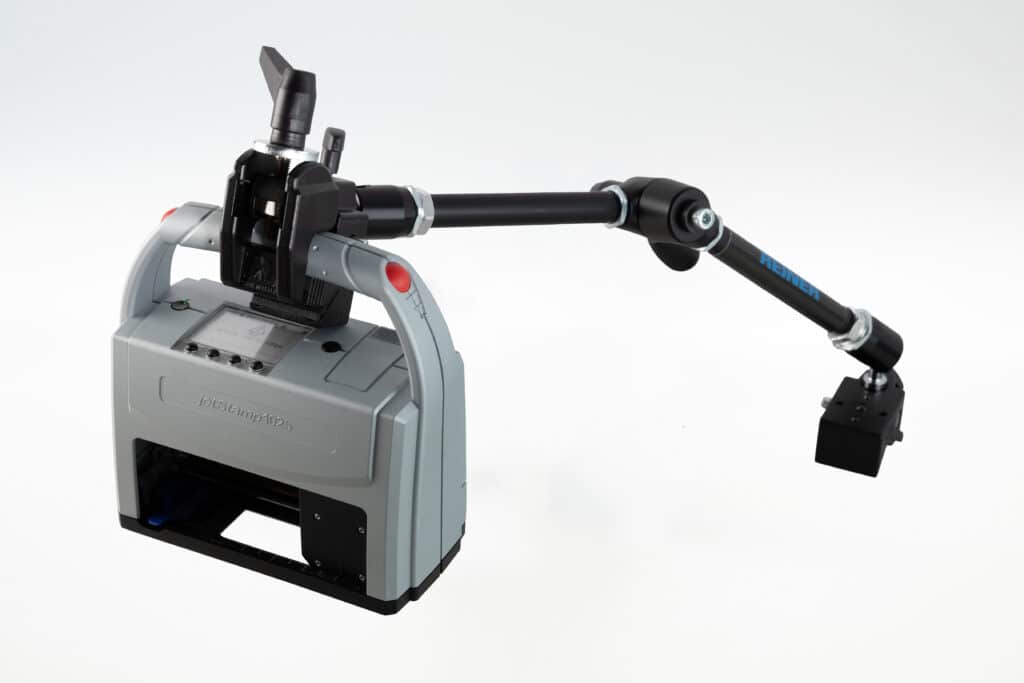
Precisely positionable
Holding arm
Adjustable holding arm for precise, reproducible printing positions.
Replacement seals
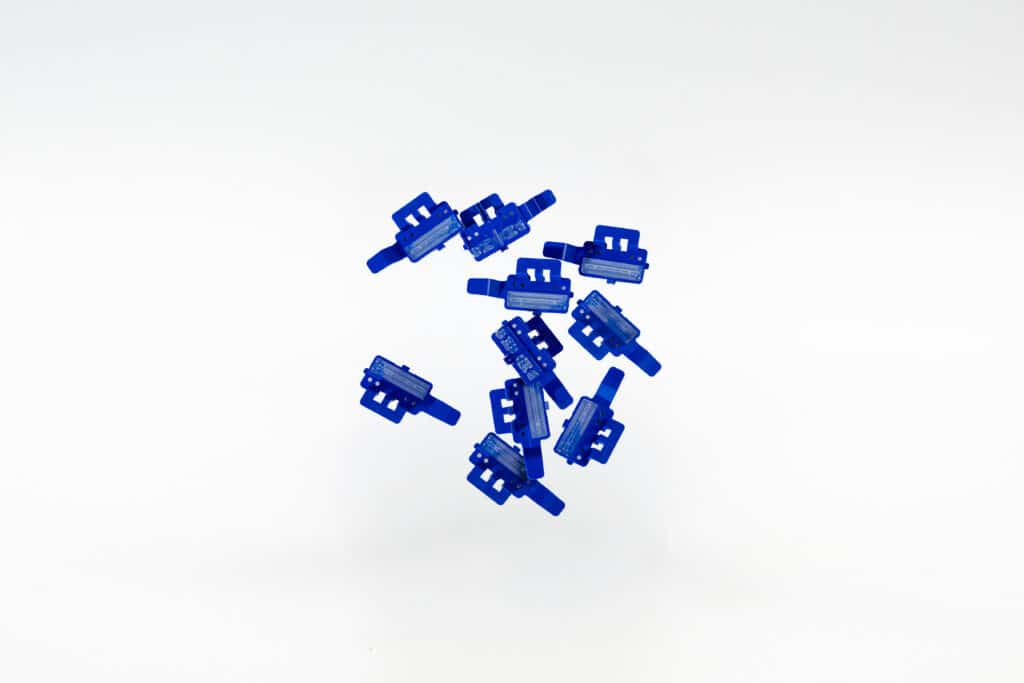
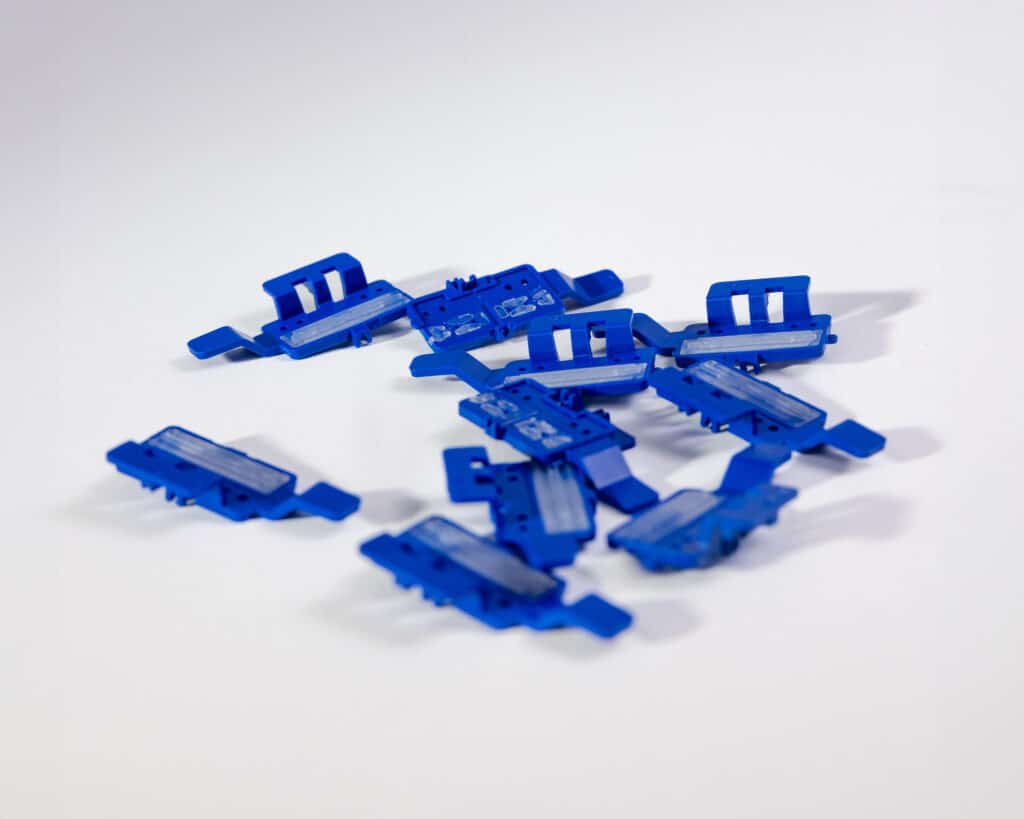
Replacement Seal Set P5-MP3/P5-MP4
Maximum print quality and protection for P5-MP3-BK & P5-MP4-BK print cartridges
Replacement seals
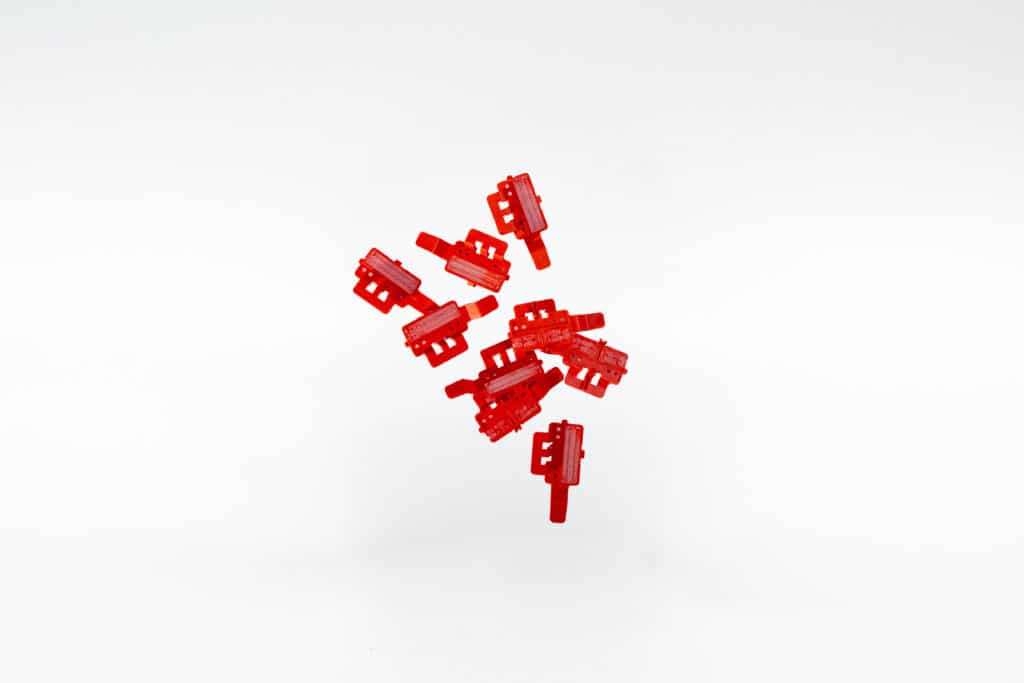
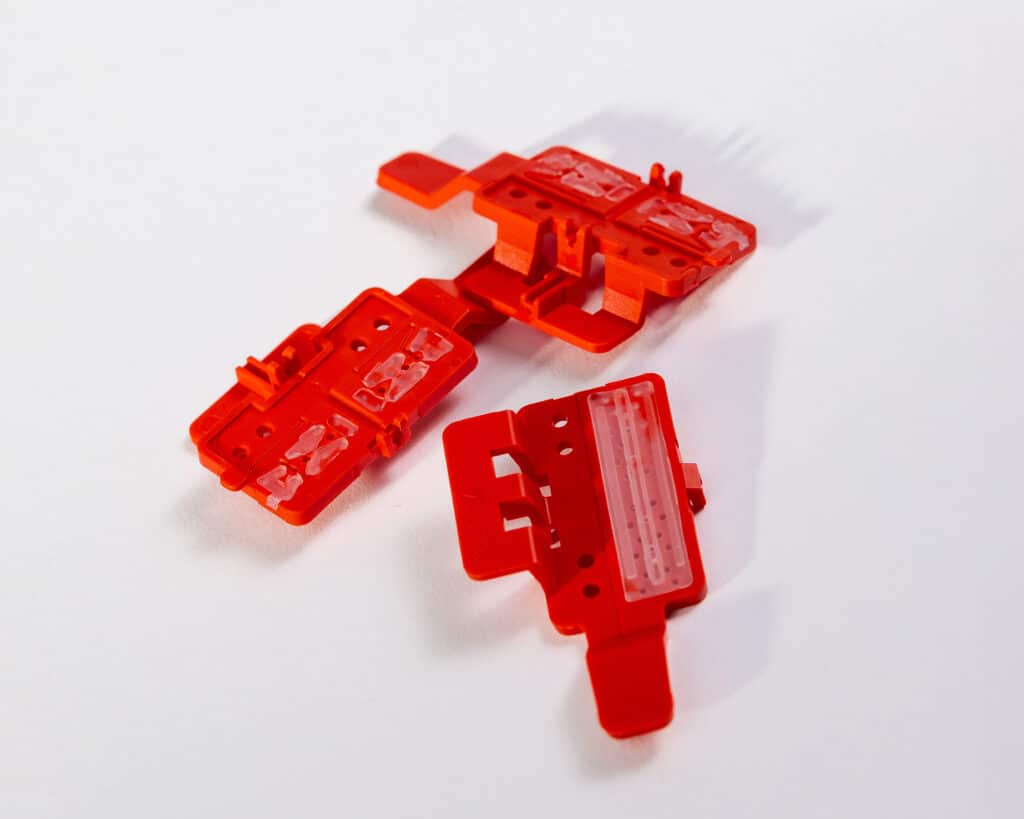
Replacement Seal Set P5-S3
Maximum print quality and protection for your P5-S3-BK print cartridge
Optimized print quality
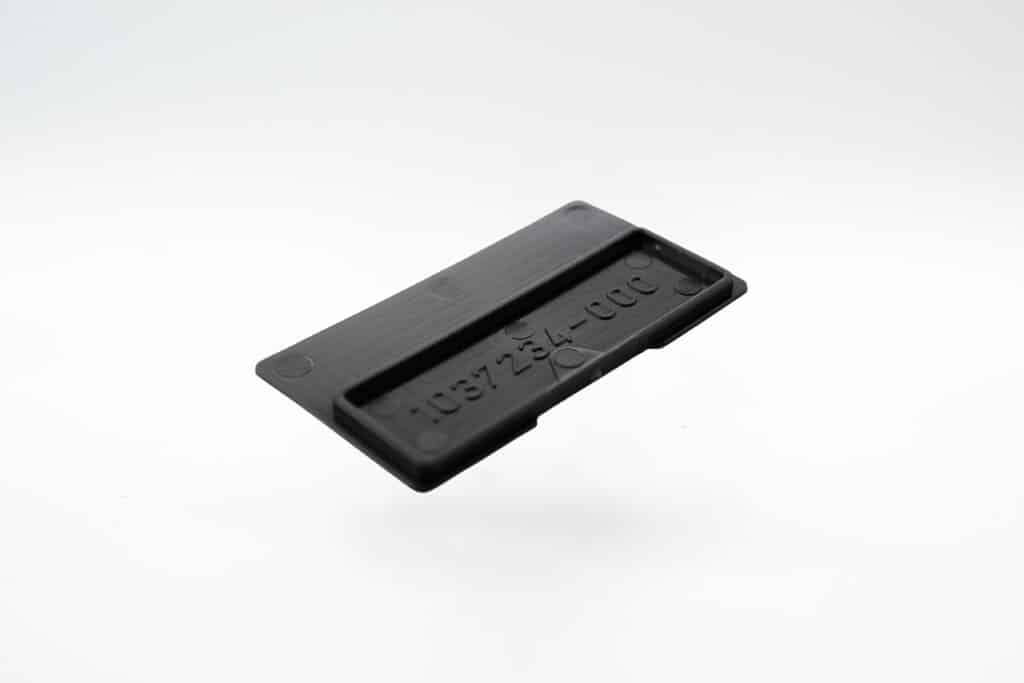
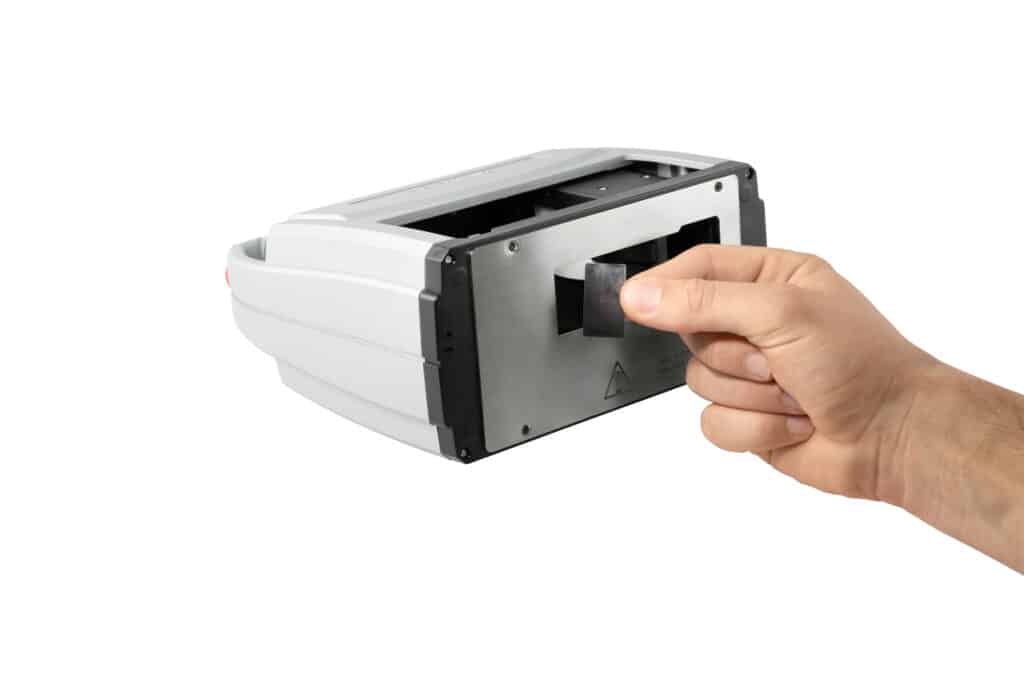
Ink collection tray set
The cleaning accessory collects the smallest amounts of excess ink so that the printed image always meets the highest requirements for sensitive markings.
Service and downloads
Everything you need
Frequently asked questions
FAQ
What materials is the jetStamp® 1025 suitable for?
The jetStamp® 1025 can print directly onto many materials, including Cardboard and paperboard, paper, wood, plastic, metal, glass, and film. Which ink is suitable and how well it adheres depends on the specific surface and the requirements of the application. For new or special materials, it is therefore recommended to perform a test print under actual operating conditions.
Which inks are used for the jetStamp® 1025?
Various quick-drying, alcohol-based inks are available for the jetStamp® 1025, e.g. MP3, MP4 and MP6 ink. They dry faster than water-based inks.
How fast does the jetStamp® 1025 print?
The imprint is made within approx. 0.9 seconds - ideal for flexible individual labeling.
Is the jetStamp® 1025 suitable for small batches?
Yes, mobile direct printing offers advantages over stationary systems, especially for small batch sizes or changing products.
Can I create print images for the jetStamp® 1025 myself?
Yes.
With the supplied software PC set graphic you can create and customize print images yourself.
📘 Further information can be found in the operating instructions at „Example workflow: Create print image“.
How are print images transferred to the jetStamp® 1025?
The print images are created with the PCset graphic software and then transferred to the jetStamp® 1025. Step-by-step instructions are included in the operating instructions.
What materials is the jetStamp® 1025 suitable for?
The jetStamp® 1025 can print directly onto many materials, including Cardboard and paperboard, paper, wood, plastic, metal, glass, and film. Which ink is suitable and how well it adheres depends on the specific surface and the requirements of the application. For new or special materials, it is therefore recommended to perform a test print under actual operating conditions.
Which inks are used for the jetStamp® 1025?
Various quick-drying, alcohol-based inks are available for the jetStamp® 1025, e.g. MP3, MP4 and MP6 ink. They dry faster than water-based inks.
How fast does the jetStamp® 1025 print?
The imprint is made within approx. 0.9 seconds - ideal for flexible individual labeling.
Is the jetStamp® 1025 suitable for small batches?
Yes, mobile direct printing offers advantages over stationary systems, especially for small batch sizes or changing products.
Can I create print images for the jetStamp® 1025 myself?
Yes.
With the supplied software PC set graphic you can create and customize print images yourself.
📘 Further information can be found in the operating instructions at „Example workflow: Create print image“.
How are print images transferred to the jetStamp® 1025?
The print images are created with the PCset graphic software and then transferred to the jetStamp® 1025. Step-by-step instructions are included in the operating instructions.
 German
  English
  French
  Spanish