
How can we help you?
Quickly find answers to frequently asked questions about our marking devices, software, inks and accessories. Use the search function or select a suitable category directly.
All products

jetStamp® 1025 sense

jetStamp® 1025
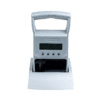
jetStamp® 990

jetStamp® 970

speed-i-Jet 798

P1 Ink Cartridges

P3 Ink Cartridges
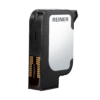
P5 Ink Cartridges

jetAxis 100
Accessories & Add-ons
Does the jetStamp® 1025 sense require a PC to transfer measurement data?
jetStamp® 1025 sense
Operation & Setup
A permanently connected PC is not required to import and then print the data at the job site. The prepared print layout is stored in the jetStamp® 1025 sense; external data can then be imported into this print layout via the designated interface.
Can the measured values be checked before printing?
jetStamp® 1025 sense
Printing & Print Quality
Yes. Imported data can be displayed on the jetStamp® 1025 sense. The actual printing is triggered manually by pressing a button, allowing the user to verify the data before marking and to approve the print specifically.
Can measurement values be combined with the date, time, or other information?
jetStamp® 1025 sense
Printing & Print Quality
Yes. Measurement data can be combined with other content—such as the date, time, text, logo, or sequential numbers—in pre-designed print layouts. This allows measurement or test results to be labeled along with the additional information required for the respective process.
What types of measuring and testing devices can be connected?
jetStamp® 1025 sense
Operation & Setup
Compatible measuring and testing devices can be connected via V24/RS232. Whether a specific device can be used depends on its interface and the data structure being transmitted. For existing measuring equipment, compatibility should therefore be verified in advance based on the specific device and the intended application.
How are measured values transmitted to the jetStamp® 1025 sense via V24/RS232?
A compatible measuring or testing device is connected to the jetStamp® 1025 sense via the V24/RS232 interface. The transmitted data can then be displayed on the device and incorporated into a predefined print image. Printing is then triggered specifically on the jetStamp® 1025 sense.
What can the jetStamp® 1025 sense do with V24/RS232?
The jetStamp® 1025 sense with V24/RS232 receives data from compatible external devices and integrates it directly into a prepared print image. For example, measurement or test data can be combined with additional information at the point of origin and then printed directly onto documents, products, or other suitable surfaces.
Can data from multiple barcodes be combined?
jetStamp® 1025 sense
Printing & Print Quality
Yes. The jetStamp® 1025 sense can merge scanned information based on the configured printing process. This allows data from multiple scans to be combined into a single print image and then output together.
What can the jetStamp® 1025 sense do with a barcode scanner?
jetStamp® 1025 sense
Printing & Print Quality
The jetStamp® 1025 sense with barcode scanner captures 1D and 2D codes and transfers the scanned data directly into the marking process. Depending on the application, the data can be imported, converted, combined, output as plain text, or used to select a stored print image. The desired marking is then printed directly onto the surface.
Can the jetStamp® 1025 sense also be connected to other devices or sensors?
jetStamp® 1025 sense
Operation & Setup
Yes. The jetStamp® 1025 sense features an I²C/UART interface that is already used to connect the REINER barcode scanner and V24/RS232 devices. The interface also serves as the technical foundation for other compatible sensors and actuators. We would be happy to determine whether a specific connection is possible based on your application.
How can I transfer print data to the jetStamp® 1025 or jetStamp® 1025 sense?
jetStamp® 1025
jetStamp® 1025 sense
Operation & Setup
Printing & Print Quality
Print data is processed using the software PC set graphic created and then transferred to the jetStamp® 1025. Depending on the device's capabilities and the application, data can be transferred via USB, Bluetooth, or Wi-Fi take place.
This makes it easy to prepare print layouts on a PC and then transfer them to the device. These can include, for example, text, numbers, dates and times, logos, and 1D and 2D codes.
How do I check if the USB driver for my jetStamp® 1025 or jetStamp® 1025 sense is installed correctly?
jetStamp® 1025
jetStamp® 1025 sense
Problems & Troubleshooting
There are two ways to verify the installation:
About PCset graphic:
If the jetStamp® 1025 / 1025 sense fails to connect to PC set graphic ...the USB driver is installed correctly.
About Windows Device Manager:
Open Device Manager and check under „Ports (COM & LPT)“, whether the device is used as
„REINER jetStamp 1025 (COMxyz)“
is displayed.
If the jetStamp® 1025 / 1025 sense does not appear there, reinstall the USB driver. To do this, reinstall the PCset graphics software.
What can I do if the USB connection on my jetStamp® 1025 or jetStamp® 1025 sense has a loose connection?
jetStamp® 1025
jetStamp® 1025 sense
Problems & Troubleshooting
First, check the USB cable. Frequent plugging and unplugging can cause wear and tear, which may result in a loose connection. Try replacing the cable to see if that helps.
If the problem persists, the USB port on the jetStamp® 1025 / 1025 sense may be the cause. In this case, REINER must perform the repair.
Why does the Bluetooth connection to my jetStamp® 1025 drop?
jetStamp® 1025
jetStamp® 1025 sense
Problems & Troubleshooting
If communication is interrupted, the distance between the PC and the jetStamp® 1025 may be a factor. Check the following:
Distance:
As a test, try reducing the distance between the PC and the jetStamp® 1025.
Obstacles:
Check to see if there are any walls, cabinets, or other obstacles between the PC and the device.
Bluetooth dongle:
If you're using an external Bluetooth dongle, be sure to check its range. For longer distances, we recommend a long-range Bluetooth dongle.
How can I tell which generation my jetStamp® 1025 is?
jetStamp® 1025
jetStamp® 1025 sense
Operation & Setup
On the jetStamp® 1025, open the menu item where Serial Number and Firmware Version will be displayed. To do this, press twice „>“ and then the right menu button.
You can identify the device generation based on the information displayed:
- „BT Type PAN1026“ → Generation I
- „ESP32 v.xxx, Web: x“ → Generation II
How can I find out the Bluetooth version of my PC or Bluetooth dongle?
Operation & Setup
You can check the Bluetooth version using Windows Device Manager:
- Right-click the Start menu and open the „Device Manager“.
- Open the section „Bluetooth“.
- Right-click your Bluetooth adapter and select „Properties“.
- Search under „Advanced“ or „Details“ based on information regarding the firmware, Bluetooth, or LMP Version.
The Bluetooth version can be determined based on the LMP version:
| LMP Version | Bluetooth Version |
|---|---|
| LMP 6.x | Bluetooth 4.0 |
| LMP 7.x | Bluetooth 4.1 |
| LMP 8.x | Bluetooth 4.2 |
| LMP 9.x | Bluetooth 5.0 |
| LMP 10.x | Bluetooth 5.1 |
| LMP 11.x | Bluetooth 5.2 |
| LMP 12.x | Bluetooth 5.3 |
How do I pair my jetStamp® 1025 with my PC via Bluetooth?
jetStamp® 1025
jetStamp® 1025 sense
Operation & Setup
In Windows, follow these steps:
- Open the Start Menu → Settings → Bluetooth & Devices and turn on Bluetooth if it's still off.
- Select „Add Device“ and then „Bluetooth“.
- Windows is now searching for available Bluetooth devices.
- Wait until your jetStamp® 1025 appears on the screen. The device name usually appears in the format „jetStamp 1025-xxxxxx“.
- Select the device to start pairing.
Once pairing is complete, the jetStamp® 1025 will be set to „Bluetooth and Devices“ displayed in the "Other Devices" section.
How can I improve the Bluetooth connection on my jetStamp® 1025?
jetStamp® 1025
jetStamp® 1025 sense
Problems & Troubleshooting
First, check whether your jetStamp® 1025 has the Current firmware version is installed. You can find the current version at Downloads → Software.
Next, reconnect the jetStamp® 1025 to your PC. To do this, in Windows, open „Bluetooth and Devices“, select „Add Device“ and start the Bluetooth search. The device will appear with its serial number in the format „jetStamp 1025-xxxxxx“ displayed.
If you are using an external Bluetooth adapter, the jetStamp® 1025 should have a Bluetooth dongle with version 4.0 or 4.2 be used.
Why can't I connect to my jetStamp® 1025 even though it's already paired?
jetStamp® 1025
jetStamp® 1025 sense
Problems & Troubleshooting
First, remove the existing Bluetooth pairing, and then reconnect the jetStamp® 1025 to your PC.
Also, check whether your jetStamp® 1025 has the Current firmware version is installed. You can find the latest firmware in the Downloads → Software.
Why doesn't my jetStamp® 1025 or jetStamp® 1025 sense appear in the Bluetooth search?
jetStamp® 1025
jetStamp® 1025 sense
Problems & Troubleshooting
First, check the following settings:
Enable Bluetooth on the jetStamp® 1025:
Open the device's settings and enable the following under „Wireless“ → „Bluetooth“ the Bluetooth feature.
Check Bluetooth settings on your PC:
In Windows, open „Bluetooth and Devices“ → „Devices“. Set the option „Bluetooth Device Discovery“ from „Standard“ to „Advanced“.
Then start the Bluetooth search again.
What types of ink are available for the jetStamp® 990?
jetStamp® 990
P1 Ink Cartridges
Printing & Print Quality
Various inks are available for the jetStamp® 990, suited for different materials and applications. Depending on the surface, the printer can print on absorbent materials such as paper and cardboard, as well as non-absorbent materials such as plastic, metal, or glass. The available ink colors include black, yellow, eggplant, and magenta/pink, among others. The appropriate ink depends on the specific material and the requirements for the print.
What is the maximum print size of the jetStamp® 990?
jetStamp® 990
Printing & Print Quality
The jetStamp® 990 is specifically designed for small printing areas. The maximum print size is 42 × 3.2 mm (W × H). You can create single- and two-line printouts that include text, numbers, and date and time information.
Is the jetStamp® graphic 970 suitable for small production runs and varying markings?
jetStamp® graphic 970
Fundamentals & Terms
Yes. Thanks to its portability and the ability to quickly switch between up to four stored print images, the jetStamp® graphic 970 is particularly well-suited for Small production runs, changing products, and flexible manual labeling processes.
Printing is done at the push of a button and takes less than a second per print.
How large is the print area of the jetStamp® graphic 970?
jetStamp® graphic 970
Printing & Print Quality
The jetStamp® graphic 970 can produce print images up to 65 × 12.7 mm.
This makes it particularly well-suited for compact labeling with text, codes, numbers, or graphics on small and medium-sized print areas.
What materials is the jetStamp® graphic 970 suitable for?
jetStamp® graphic 970
Materials & Applications
The jetStamp® graphic 970 can mark a variety of materials directly, such as Paper, cardboard, wood, plastic, glass or films.
The choice of ink depends on the specific surface and the requirements of the application. For new or special materials, it is recommended to conduct a test under actual operating conditions.
What materials is the jetStamp® 1025 sense suitable for?
jetStamp® 1025 sense
Materials & Applications
The jetStamp® 1025 sense can be used to mark a variety of materials, such as Paper, cardboard, wood, plastic, or metal.
The choice of ink depends on the specific surface and the requirements of the application. Different inks are available for absorbent and non-absorbent materials.
For new materials or special surfaces, it is recommended to conduct a test under actual operating conditions.
Can measurement results be printed immediately after the measurement?
jetStamp® 1025 sense
Printing & Print Quality
Yes. Through the sensor interface, external devices can be connected using a V24/RS232 Sensor Cables can be connected to the jetStamp® 1025 sense.
Transmitted measurement values can be incorporated into the print image and output directly onto the product, component, or document along with additional information.
This allows you to Integrate measurement, labeling, and documentation directly with one another.
Can the correct print image be selected automatically using a barcode?
jetStamp® 1025 sense
Printing & Print Quality
Yes. A scanned barcode can be used with the jetStamp® 1025 sense to Selecting the Right Print Design be used.
This allows different labels to be processed within a single process without having to manually select the required print image each time. This is the case, for example, when changing products, variants, or orders helpful.
Can scanned barcode data be printed directly?
jetStamp® 1025 sense
Printing & Print Quality
Yes. With a connected barcode scanner, scanned data can be used directly for subsequent printing.
For example, a scanned barcode can reproduced or converted into other content . This eliminates the need to re-enter the data manually and allows the labeling process to be streamlined.
What types of barcodes can the jetStamp® 1025 sense scan?
jetStamp® 1025 sense
Printing & Print Quality
With the connected REINER barcode scanner, you can 1D and 2D codes be captured. The information read can then be processed by the jetStamp® 1025 sense for the marking process.
Depending on the application, the data can, for example, be imported, converted, combined, or used to select a print image.
How can scanned barcode data be processed?
jetStamp® 1025 sense
Printing & Print Quality
The REINER barcode scanner can be connected to the sensor interface of the jetStamp® 1025 sense. This allows you to Scan 1D and 2D codes and use their data for the labeling process.
Depending on the application, scanned information can, for example:
- taken over directly,
- converted into other content,
- merged with additional scan data,
- displayed as plain text, or
- can be used to select a suitable print image.
This allows you to link scanning and printing processes directly.
Does direct printing result in an additional packaging element?
P1 Ink Cartridges
P3 Ink Cartridges
P5 Ink Cartridges
Fundamentals & Terms
In direct printing, the ink is applied directly to the existing packaging surface. Unlike with an adhesive label, no separate packaging element is created. However, the ink used and the printed image must still be taken into account when evaluating the finished, printed packaging.
What documentation does REINER provide for its inkjet inks?
P5 Ink Cartridges
Printer Cartridges & Ink
For inkjet inks P5-S3-BK, P5-MP3-BK, P5-MP4-BK, and P5-MP6-YE Separate REINER PPWR statements are available. These contain details on the specific substance restrictions under consideration and are based on information provided by raw material suppliers as well as REINER’s current knowledge. They can assist customers in evaluating their printed packaging.
On which packaging materials can PPWR-related information be printed?
Materials & Applications
Direct printing is possible on a variety of packaging materials. For PPWR-related information, suitability depends on the specific surface, its properties, the ink used, and the requirements for adhesion and durability. Therefore, the desired combination of material, ink, and marking device should be tested in advance using a print test.
Does the direct ink print constitute a separate component of the packaging?
Printer Cartridges & Ink
A print produced by a REINER device is applied directly to an existing packaging component. It does not constitute a separate packaging component—such as a label—but should be considered a limited application of ink on the existing packaging material.
When do the PPWR requirements take effect?
Fundamentals & Terms
The PPWR generally takes effect as of August 12, 2026. However, specific requirements—including certain labeling, recycling, and reuse regulations—are subject to their own transition and implementation deadlines. Companies should therefore determine which requirements will apply to their packaging and when.
What information can be printed directly on packaging?
Fundamentals & Terms
With REINER marking devices, you can print, for example, type and lot numbers, serial numbers, production data, manufacturer information, as well as barcodes, QR codes, and other variable content directly onto suitable packaging.
How can I tell which generation my jetStamp 1025 is?
jetStamp® 1025
Fundamentals & Terms
On the jetStamp 1025, open the menu item that displays the serial number and firmware version. To do this, press the arrow key twice „>“ and then the right menu button.
The menu displays information about the device generation:
- „BT Type PAN1026“ stands for Generation I.
- „ESP32 v.xxx, Web: x“ stands for Generation II.
How can I find out the Bluetooth version of my PC or Bluetooth dongle?
Software & Integration
You can check the Bluetooth version using Windows Device Manager:
- Right-click the Windows Start menu.
- Open the „Device Manager“.
- Search the list for „Bluetooth“ and open the section.
- Right-click on your Bluetooth adapter.
- Select „Properties“.
- Go to the tab „Advanced“ or „Details“.
- Look for information such as „Firmware Version“, „Bluetooth Version“ or „LMP Version“.
You can determine the Bluetooth version based on the LMP version:
| LMP Version | Bluetooth Version |
|---|---|
| LMP 6.x | Bluetooth 4.0 |
| LMP 7.x | Bluetooth 4.1 |
| LMP 8.x | Bluetooth 4.2 |
| LMP 9.x | Bluetooth 5.0 |
| LMP 10.x | Bluetooth 5.1 |
| LMP 11.x | Bluetooth 5.2 |
| LMP 12.x | Bluetooth 5.3 |
The exact name of the Bluetooth adapter may vary depending on the PC or Bluetooth dongle.
Does direct printing result in an additional packaging component?
Fundamentals & Terms
In direct printing, the ink is applied directly to the existing packaging material. No separate packaging element, such as a label, is created. Nevertheless, the ink application must be taken into account in the overall evaluation of the packaging.
Is packaging printed with REINER inks automatically PPWR-compliant?
Printer Cartridges & Ink
No. These statements refer to the ink used and do not replace an assessment of the fully printed packaging. To ensure compliance with the PPWR, the relevant requirements for packaging, labeling, and use must be taken into account and documented.
Which REINER inks are documented for PPWR-related packaging labels?
Printer Cartridges & Ink
For black inkjet inks P5-S3-BK, P5-MP3-BK, and P5-MP4-BK as well as for the yellow inkjet ink P5-MP6-YE REINER has issued statements regarding the substance restrictions under Article 5 of Regulation (EU) 2025/40. The scope of each test is documented in the statement. Whether the ink is suitable for a specific packaging surface should also be verified by means of a test print.
Why can't I establish a Bluetooth connection to my jetStamp® 1025 or jetStamp® 1025 sense even though the device is already paired?
jetStamp® 1025
Software & Integration
First, remove the existing Bluetooth pairing, and then pair the jetStamp 1025 with your PC again.
If the problem persists, check to see if the latest firmware is installed on the device. You can find the latest firmware version on the website under „Downloads“ under „Software“.
Why doesn't my jetStamp 1025 show up in the Bluetooth search?
jetStamp® 1025
Problems & Troubleshooting
Software & Integration
First, check whether Bluetooth is enabled on the jetStamp 1025:
- Open the device's settings.
- Go to „Wireless“.
- Open „Bluetooth“ and enable the feature.
If the device still cannot be found, adjust your PC's Bluetooth settings:
- In Windows, open „Bluetooth and Devices“.
- Go to „Devices“.
- In the device settings, change the option „Bluetooth Device Discovery“ by „Standard“ on „Advanced“.
- Then start the Bluetooth search again.
What is the difference between an FNSKU and an EAN?
Fundamentals & Terms
The detailed explanation shouldn't be on this application page, but in your blog post.
How are changing FNSKU codes selected?
Printing & Print Quality
Print templates can be stored digitally in the device and selected based on the product or job. With the jetStamp® 1025 sense, this selection process can also be integrated into a scan-based workflow.
Are there any other barcodes on the packaging that need to be taken into account?
Fundamentals & Terms
Yes. If multiple barcodes are visible and scannable at the same time, this can lead to incorrect matching. Therefore, the specific packaging and the barcode settings for the listing must be checked in advance.
Does FNSKU printing work on brown cardboard?
Materials & Applications
Direct printing can work if the cardboard surface is suitable and the right ink is used. Contrast, edge sharpness, open areas, and scannability are crucial. That is why the original packaging is tested in advance.
What information must be included on the printout?
Printing & Print Quality
In addition to the barcode, the print layout must include, among other things, the FNSKU or ASIN, the product name, and the item condition. The required blank spaces must also be taken into account.
Can an FNSKU be printed directly on the product packaging?
Printing & Print Quality
Yes. Amazon’s requirements explicitly include Amazon barcodes that are printed directly on product packaging. However, the printed barcode must meet the same content and design requirements and be reliably scannable.
Which types of packaging can be printed on directly?
Materials & Applications
Depending on the surface and the ink used, materials such as cardboard, paper, select plastics, and films can be printed on. A test print should be performed on the actual material before use.
 German
  English
  French
  Spanish